Create an ESX and/or ESXi MAC-Specific Provisioning Template and Role
User's Guide feedback on: Cisco Server Provisioner 6.6 User's Guide ("Chuck Berry") - Create an ESX and/or ESXi MAC-Specific Provisioning Template and RoleProvision_ESX_MAC-SpecTutorial: Provision ESXi Hypervisors > Create an ESX MAC-Specific Provisioning Template and Role /Dear User's Guide Staff,
Create an ESX and/or ESXi MAC-Specific Provisioning Template and Role
The required boot sequence for all ESX and ESXi hypervisors is "boot to disk, then network boot". This prevents the accidental deletion of all virtual machines should the host hypervisor be booted to the network accidentally. With this recommended boot sequence, when your disk is empty, you will boot to the network. Your disk must be empty prior to provisioning ESX or ESXi. You may use Live Ubuntu to clear the contents of your drive.
First, you must create a Template (what to install) then create a Role for a system and assign the Template to that Role. If you create multiple Templates, you can easily change what OS to install on the system by simply assigning a different Template to the Role.
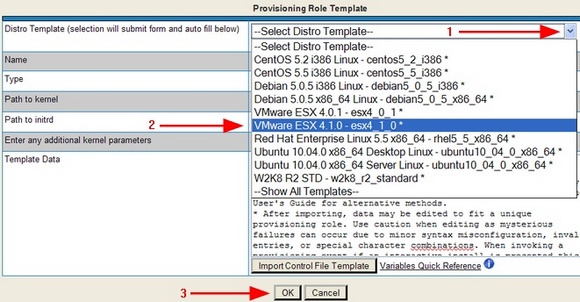
Select what you want to provision (ESX) with this Template:
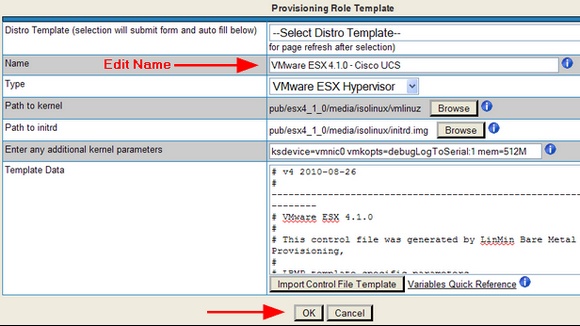
After you have made your selection, the form’s fields will be automatically populated:
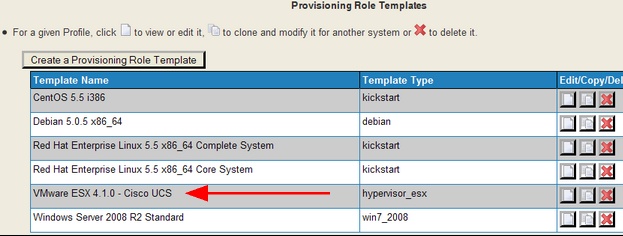
You will then be brought back to the Templates page:
Now, create (or edit an existing) Provisioning Role:
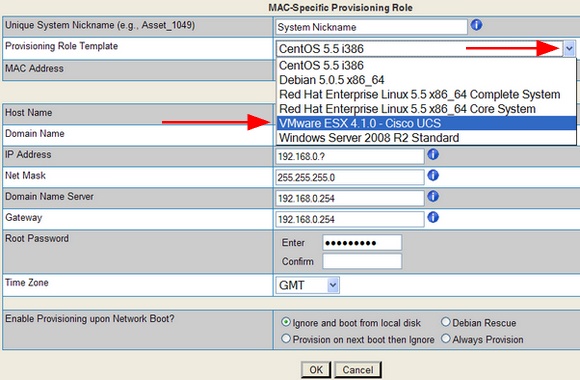
Select the Template for your Role:
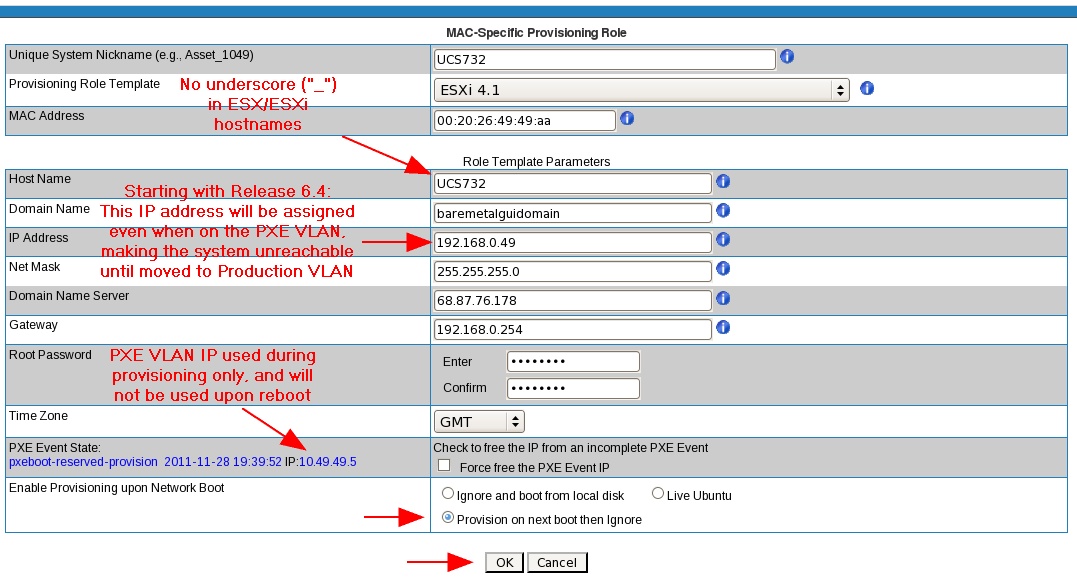
Complete the form and select the "Next Boot" option:
MAC addresses must be entered in colon-delimited format, e.g., 00:20:26:49:49:49.
Important: ESX allows only letters, numbers and hyphens in Host Names. If you use an underscore or other disallowed characters, your installation will fail.
It is possible to provision ESX and ESXi with DHCP IP addressing:
1) To provision ESX and ESXi with DHCP IP addressing requires answer kickstart configuration file template changes
2) These changes are not supported by Cisco
3) The availability and configuration of DHCP in the user's network environment is the sole responsibility of the user.
Starting with Release 6.4, ESX's and ESXi's IP address upon rebooting on the PXE VLAN will be the Provisioning VLAN IP address specified in the GUI or via the API. The ESX/ESXi client will be unreachable by IP address until relocated to its Production VLAN specified by Client IP address in the GUI or via the API. This is by design to enhance orchestrator (e.g, Cisco Tidal Enterprise Orchestrator or Cisco Process Orchestrator) effectiveness.
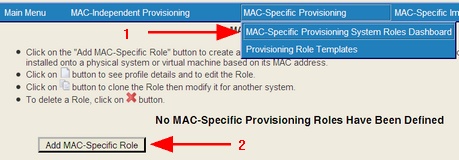
And you will be brought to the MAC-Specific Provisioning Roles Dashboard:
NOTE: Single VLAN configurations for ESX will be provisioned using an IP from the user-designated PXE Event IP range.
Finally, boot the Client System to the network (with boot sequence "Boot to disk first, then network boot"), and it will be provisioned with the hypervisor you selected. It will then reboot and be fully operational.
Important notes:
•When using the API to manage MAC Specific Roles, after moving the system to another vLAN or setting a static IP outside the Provisioner PXE IP range, issuing a "freeip" transaction will allow the PXE Event IP to be reclaimed for reuse. The PXE Event State and reserved IP are obtained with the API 'Read' action.
•The ESX and ESXi MAC Specific Roles will still require valid values: Host Name, Domain Name, Net Mask, Domain Name Server, and Gateway. Again note these values are not used and are for visual reference only.
•The required boot sequence for all ESX and ESXi hypervisors is "boot to disk, then network boot". This prevents the accidental deletion of all virtual machines should the host hypervisor be booted to the network accidentally. With this recommended boot sequence, when your disk is empty, you will boot to the network. Your disk must be empty prior to provisioning ESX or ESXi. You may use Live Ubuntu to clear the contents of your drive.