Troubleshooting Windows Server 2008 and Windows 7 Clients
User's Guide feedback on: Cisco Server Provisioner 6.6 User's Guide ("Chuck Berry") - Troubleshooting Windows Server 2008 and Windows 7 ClientsTroubleshooting_the_Windows_Provisioning_ModuleTroubleshooting and Technical Support > Troubleshooting Windows Server 2008 and Windows 7 Clients /Dear User's Guide Staff,
Troubleshooting Windows Server 2008 and Windows 7 Clients
Client System Hardware: Important Considerations
Make sure that the client systems you provision meet the minimum specifications set forth by Microsoft to run a given Windows Operating System.
If a system cannot be provisioned using Provisioner, try installing Windows from ISO or using a DVD containing the identical Windows-supplied ISO that you used to create a Provisioner PXE Server-ready ISO. If you cannot install Windows from this DVD, the Provisioner PXE Servercannot remotely install it. Your ISO file must be bootable and it must support your client system hardware. For example, Windows Server 2008 and R2 will display boot manager and other non-descriptive failure messages on systems that can run Windows 7 or Linux.
Systems with IDE drives or combinations of IDE and SATA drives may experience installation problems for these same reasons.
If you have hardware that requires specialized drivers, inject them into the Windows ISO (information on the process abounds on various forums using various tools to open an ISO, modify it and then re-create a derivative ISO.) Resources for accomplishing this can be found in Customizing the Provisioning Process for Windows Server 2008 and Windows 7. If this modified ISO can install Windows on a system using a DVD, then make it Provisioner PXE Server-ready and create an Install Instance. In the future, we may provide information on dynamically injecting drivers during installation.
Capturing Windows Client Hardware and Networking Info
2) Open a command line window on the Windows client
2a) Maximize the command line window
2b) Issue the command ipconfig /all and capture a screen shot (if your Windows client has network connectivity, pipe the command to a text file instead)
2c) Issue the command netsh interface ipv4 show interfaces and capture a screen shot (if your Windows client has network connectivity, pipe the command to a text file instead)
2d) Submit the screen shots or text files to to support.linmin.com
Please use meaningful names when naming files:
Not "screenshot_1.jpg", but rather "Windows_Client_3_ipconfig_all.jpg", for example.
Is the Client system reaching the Provisioner PXE Server?
The Install Instance Log contains detailed transcripts of the communications between the Provisioner PXE Server and the client system as well as client hardware configuration information. A separate, time-stamped log file is created for each provisioning event, for example:
The PXE Event Log contains a record of all Windows and Linux systems provisioned by the Provisioner PXE Server. It can be found at:
/usr/local/linmin/linmin-bmp-pxe-event.log
If a Client System Drops from AutoUnattended Mode into Interactive Installation Mode
If this happens, continue using the dialog boxes until the installation completes or fails, or click "OK" or "X" if no other choice is presented. The command line window will then appear. Execute setup.exe manually:
c:\ setup.exe
Proceed with the interactive installation until the installation is complete. By finishing the interactive installation process, you gain insight as to what the issue may have been.
Invalid Product Key
This is a common problem with incorrect keys being entered, or keys being entered for OS versions (e.g. R2) that do not accept them during installation.
Run setup.exe to complete the installation: if you enter a key that is valid and completes the installation, then that key is valid and should be entered into the Install Instance (except for R2 which cannot provision with a key).
If the installation displays "Invalid Product Key", proceed with the interactive installation (executing setup.exe).
If no key is requested during the interactive installation, then create another Install Instance without a key (using the "nokey" option), as this has validated that this OS requires no Product Key to be remotely installed.
If a key is requested, enter your key and validate that you entered the incorrect key when creating the Install Instance.
As you gain experience with Install Instance .xml files, you may edit them to add/remove/edit keys using winDOSfileEdit.sh. This process is described in Advanced Concepts.
Remember: Windows Server 2008 R2 will not install with a Product Key entered in its Install Instance
Language Selection
Make sure the language selection you entered is compatible with the Client System hardware and firmware. The Install Instances XML file contains the settings for language selections (in 5 or more places). See Advanced Concepts for best practices while editing the XML file then modify the XML file to meet your language requirements. Report to us any instances where changes to the XML file still prevented a fully automated installation.
Missing Drivers in your Windows ISO
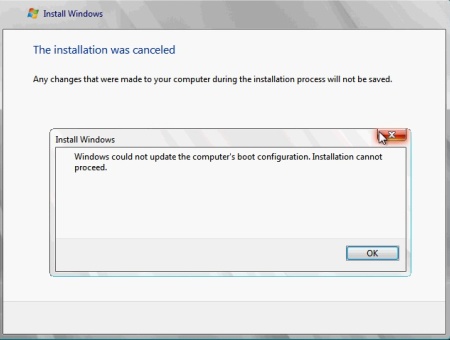
You may be provisioning newer hardware that includes devices for which there are no drivers in the Microsoft-supplied ISOs. If so, Windows installation will display the error message "Windows could not update the computer's boot configuration. Installation cannot proceed", similar to:
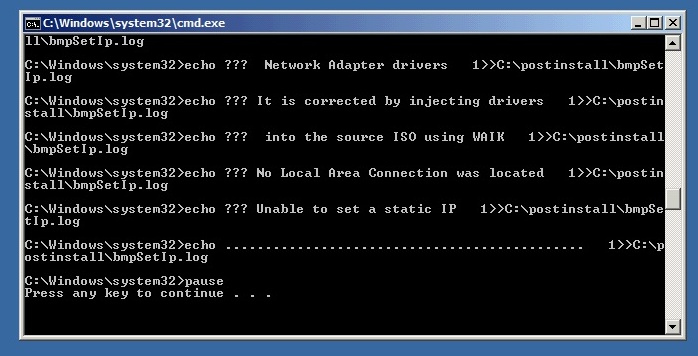
Or you may see a client-side message such as:
To see if your hardware is incompatible with your version of Windows, try provisioning a newer version of Windows on the same system (e.g. a Service Pack, as service packs get refreshed with the latest drivers). If you are missing Windows drivers, you may inject drivers into your ISO using a Windows Customization and Driver Injection Utility.
You can also provision the same system using the same ISO that you supplied your provisioning server: a manual, local DVD installation does not require NIC access while the Provisioner PXE Server service does. The following commands will confirm whether the NIC driver are valid or not. In sequence, from the command window:
ipconfig /all ping {your-Provisioner PXE Server IP address} ping www.google.com ipconfig /release ipconfig /renew ipconfig /all ping {your-Provisioner PXE Server IP address} ping www.google.com
Troubleshooting the Clonezilla "Transport Engine" used to transport Windows Server 2008 and Windows 7 ISO images to the Client being provisioned
In order for the Provisioning of Windows Server 2008 and Windows 7 to begin on the Client system the ISO must be successfully transported to from the Provisioner PXE Server to the Client system. For this, the Ubuntu kernel used by Clonezilla must support both the Network Interface Card and the Storage Controller.
If you are experiencing provisioning Windows, try deploying Live Ubuntu to eliminate Clonezilla driver issues.If Live Ubuntu fails to load, capture a screen shot.
Here is a summary of how to diagnose driver issues in the Ubuntu kernel of Clonezilla vs. drivers missing in the Windows ISO itself. Below, when we refer to "W2K8", we mean either Windows Server 2008, R2 or Windows 7:
-W2K8 is provisioned using Clonezilla Live, using an Ubuntu kernel imaging module to transport the WinPE and ISO to the client
-Before transporting the W2K8 ISO, Ubuntu needs to be able to recognize the NIC and the Storage/RAID controller of the Client hardware
-If Provisioner fails because it lacks these drivers in Ubuntu, it will fail nearly immediately (and you will see an error message with a stating a driver is missing. Refer to to "Troubleshooting Imaging"). No W2K8 files get copied to the client
-When Provisioner succeeds (the Ubuntu kernel recognizes the NIC and storage controller), then it does partitioning work and starts copying the W2K8 files over to the Client system. After a Client reboot, you will see the Windows installer begin (GUI)
-When the W2K8 install starts, and then fails because of a driver issue (see a representative screenshot above), then it’s the W2K8 ISO that lacks the driver needed to support the Client hardware, and it means that Provisioner successfully transported the ISO/WinPE. If this is the case, install W2K8 from ISO directly, and you should see the same driver error(s). Customer support cannot help you with how to repackage your Windows ISO to include additional drivers, but there are resources available in Customizing the Windows Server 2008 and Windows 7 Provisioning
-This knowledge will help distinguish between the lack of driver support in Provisioner, and the lack of driver support in the Windows ISO.
Multiple DNS IP Addresses Not Properly Set in Windows Server 2008 or Windows 7 Client
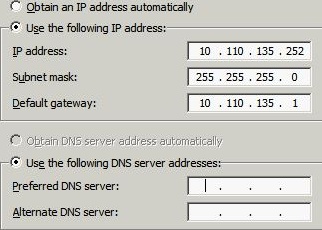
The current Provisioner release does not update the DNS entries after the Windows installation is done if you have more than 1 DNS IP. If more than 1 DNS IP is used, the provisioned Client will display a screen similar to:
There are 2 workarounds:
1) Use only 1 DNS IP
2) Edit the .xml file of the Windows Install Instance and create two name server entries where there was one, as shown below. If you do this, be sure to follow the instructions for properly editing files.
Before:
rem # START STATIC IP echo ............................................. >> %linminiplog% echo ... static IP >> %linminiplog% netsh interface ipv4 set address name="Local Area Connection" source=static address=10.112.135.252 mask=255.255.255.0 gateway=10.112.135.1 gwmetric=1 >> %linminiplog% echo ............................................. >> %linminiplog% echo ... dnsserver setup >> %linminiplog% netsh interface ipv4 add dnsserver name="Local Area Connection" address=10.112.150.21,10.112.180.21 index=1 >> %linminiplog% rem # END STATIC IP
After: rem # START STATIC IP echo ............................................. >> %linminiplog% echo ... static IP >> %linminiplog% netsh interface ipv4 set address name="Local Area Connection" source=static address=10.112.135.252 mask=255.255.255.0 gateway=10.112.135.1 gwmetric=1 >> %linminiplog% echo ............................................. >> %linminiplog% echo ... dnsserver setup >> %linminiplog% netsh interface ipv4 add dnsserver name="Local Area Connection" address=10.112.150.21 index=1 >> %linminiplog% echo ... dnsserver setup >> %linminiplog% netsh interface ipv4 add dnsserver name="Local Area Connection" address=10.112.180.21 index=2 >> %linminiplog% rem # END STATIC IP
Note on IP address assignments of Windows clients:
If no active NICs are discovered on the client system, Windows assigns a default IP address of 169.254.xxx.xxx regardless of what you assigned. An active NIC is one that is cabled (physically or virtually) to a LAN or vLAN.
If no active NICs are discovered, you can use "ipconfig /all" to verify this state. Furthermore, you can use the following command stream:
ipconfig /release
* this may fail with nothing to release
ipconfig /renew
* this should fail with no connection found
ipconfig /all
* this will again show no connection was made
With UCS Manager, this usually indicates that the system's primary NIC is not properly configured into the "moved to" vLAN. The UCS profile(s) should thus be checked.