User's Guide feedback on: Cisco Server Provisioner 6.6 User's Guide ("Chuck Berry") - Deploy Live Ubuntu (Release 6.1 and later)Deploying_Rescue_Systems_Live_UbuntuTutorial: Deploy Rescue Systems (incl. Live Ubuntu) > Deploy Live Ubuntu /Dear User's Guide Staff,
Deploy Live Ubuntu (Release 6.1 and later)
Live Ubuntu, a combination of RAM-resident Ubuntu® and of Clonezilla Live, can be deployed to the RAM of a client system without impacting the on-disk contents and without running the native operating system (Linux, Windows, ESX/ESXi) installed on the client system.
Deploying Live Ubuntu also captures the Client system's hardware profile and stores it on the Provisioner PXE Server, enabling Support to better diagnose client-side issues.
MAC-Specific Live Ubuntu
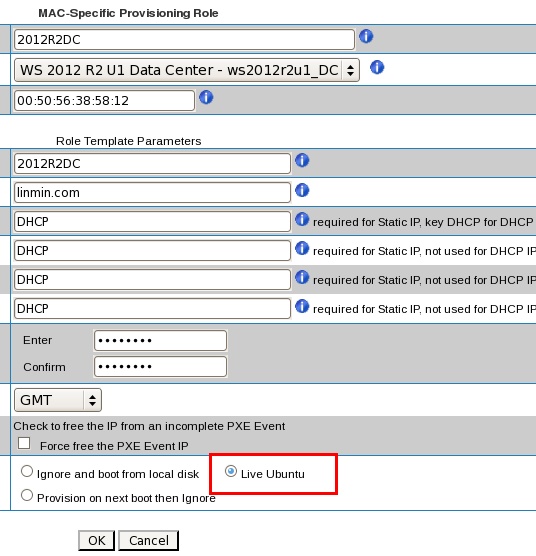
Click on the “Live Ubuntu” radio button in the “Enable Provisioning upon Network Boot?” field:
The MAC-Spec Provisioning Role Dashboard will show the entry in green:
MAC-Independent Live Ubuntu
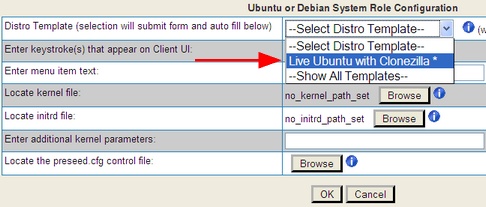
Click “Add Ubuntu or Debian Role”, and select “Live Ubuntu” from the drop-down:
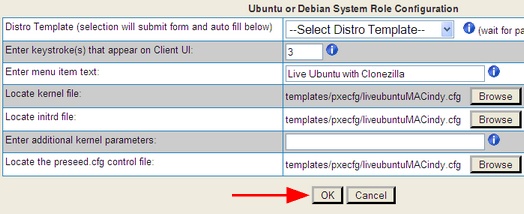
The resulting entry on the menu will be as follows:
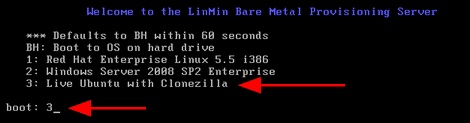
And the corresponding client-side menu will display:
Client-Side:
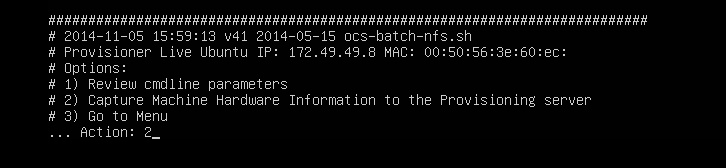
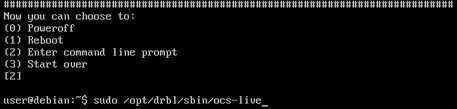
When deployed, either with MAC-Spec or MAC-Indy Provisioning, Live Ubuntu's first screen will show as either (Provisioner 6.6 or greater):
Note the mapping of files between the Provisioning Server and the Client system: files (scripts, data, etc.) are mounted and can be accessed from either system:
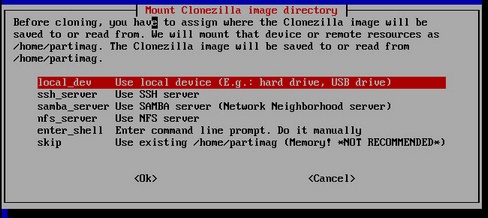
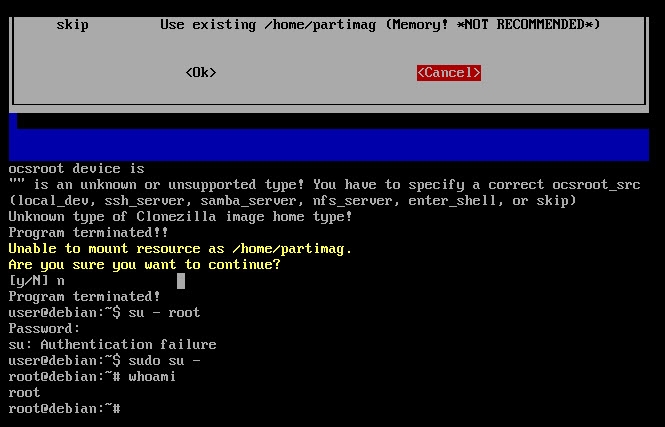
To exit Clonezilla Live, tab to the "Cancel" button, then enter "n" when prompted:
For root access, use the command "sudo su -"
Access the remote system via ssh using ssh user@{client-ip} and the password liveubuntu (this can be changed in the templates in tftpboot/templates/pxecfg/).
Password encryption: in /usr/local/linmin you will find the script linmin-bmp-encrypt-pw.sh for Linux password encryption of clear text passwords.
Client Profile Information Stored on the Provisioner PXE Server
Deploying Live Ubuntu and requesting the Hardware Inventory captures the Client system's hardware profile and stores it on the Provisioner PXE Server, enabling Support to better diagnose client-side issues, as this information gets captured when generating a .help file.
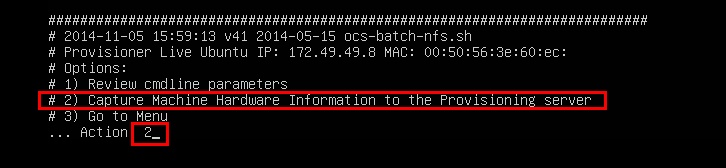
Prior to Provisioner 6.6, the hardware capture was automatic. Starting with Provisioner 6.6 (Chuck Berry), the hardware information must be invoked on the client side as shown below:
Client Profiles get automatically stored on the Provisioner PXE Server in:
Each client has a directory based on MAC address, and gets augmented with a new text file each time Live Ubuntu is deployed to that client and the "Capture Machine Hardware" option is selected. For example: