Troubleshooting Imaging and Windows Server 2008 for missing drivers
User's Guide feedback on: Cisco Server Provisioner 6.6 User's Guide ("Chuck Berry") - Troubleshooting Imaging and Windows Server 2008 for missing driversTroubleshooting_ImagingTroubleshooting and Technical Support > Troubleshooting Imaging and Windows Server 2008 for missing drivers /Dear User's Guide Staff,
Troubleshooting Imaging and Windows Server 2008 for missing drivers
Provisioner uses Clonezilla (www.clonezilla.org) as the basis for its Imaging, Ubuntu Live ("Rescue CD") and Windows Server 2008/Windows 7 Provisioning capabilities.
In order for any of these features to work, the Network Interface Card (NIC) and storage controllers must be supported in the kernel of the version of Ubuntu used by Clonezilla.
To confirm hardware support issues and to further troubleshoot your Client system's hardware, you must install the most recent version of Clonezilla Live "Alternative Stable": download the ISO from http://clonezilla.org/downloads/download.php?branch=alternative and burn the ISO to CD-ROM, then boot your system from CD-ROM, then go to the command line. Note that Clonezilla loads in RAM and will not impact your hard drive contents unless you instruct it to do so. The lshw command is helpful to get a complete picture of the Client system's hardware components
Network Interface Card Drivers Missing
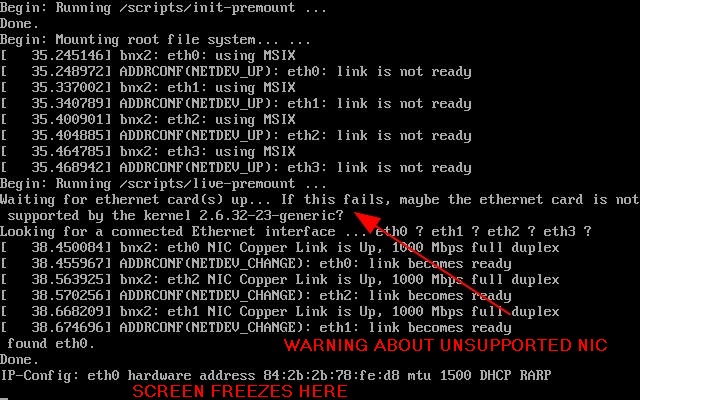
If the NIC is not recognized by the kernel, you will see the Client screen displaying a message containing to "the ethernet card is not supported by the kernel" similar to the screen below:
The command lspci can be very helpful in resolving NIC driver issues. After booting Clonezilla Live "Alternative Stable" (see above), go to the command line:
2 Ethernet cards were found in this example. Focus on the 1st column, i.e. 01:00.0 and 01:08.0, then run:
$ lspci -n | grep "^01:00.0"
01:00.0 0200: 8086:107c (rev 05)
$ lspci -n | grep "^01:08.0"
01:08.0 0200: 8086:1050 (rev 02)
You will now see the PCI Device ID for each NIC in the 3rd column. The PCI Device ID contains 2 components: vendor name and device.
Intel's vendor ID is 8086, and in the example above, you can search for the PCI Device ID and find the Intel 82541PI, and search for PCI Device ID 8086:1050 and find the Intel 82562EZ.
Now, you can look up the PCI Device ID in the kernel module PCI map file, i.e., the file /lib/modules/`uname -r`/modules.pcimap. First, convert vendor ID and device ID to the format used in modules.pcimap by putting "0"x in front of each ID, then by adding as many "0" as required to make the string 10 characters long:
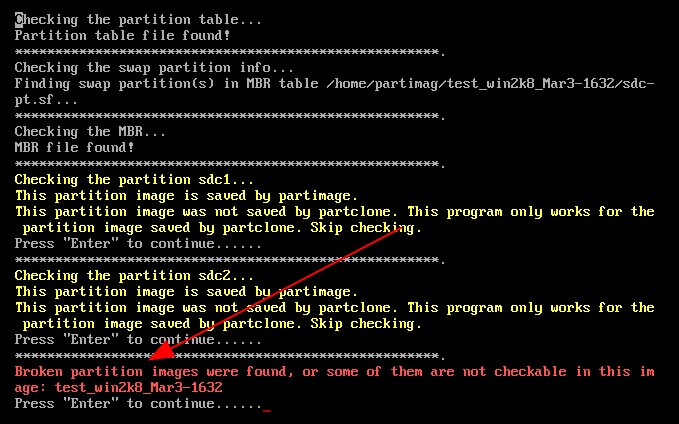
Often, if a storage controller is not recognized, the Imaging, Live Ubuntu or Provisioning of Windows Server 2008/Windows 7 event will not complete, and instead a screen similar to the one below will appear:
The command cat /proc/partitions/ will name the storage device names if recognized by the kernel. After booting Clonezilla Live "Alternative Stable" (see above), go to the command line:
$ cat /proc/partitions
major minor #blocks name
8 0 157286400 sda
8 1 48163 sda1
8 2 4088542 sda2
8 3 2064352 sda3
8 4 1 sda4
8 5 151083261 sda5
If no storage device name is shown, then the kernel does not support it.
If the kernel does not support the storage controller, you can use hwinfo or lshw to get the storage controller hardware info.
You can also use lspci to obtain additional information on the device, as was outlined in the section above (NIC Drivers):
$ lspci | grep -i SATA
00:1f.2 SATA controller: Intel Corporation 5 Series/3400 Series Chipset 6 port SATA AHCI Controller (rev 06)
Generating .txt files of your Client system's hardware
When logged in as root:
lshw > lshw.txt
lspci > lspci-1.txt
lspci -n > lspci-2.txt
hwinfo > hwinfo.txt
cat /proc/partitions > partitions.txt
When Drivers are Not Supported/Missing
If your Client system's Network or Storage/RAID controller is not recognized by the Provisioner PXE Server, it may be possible to support it by rebuilding the Imaging Subsystem with the appropriate open source driver, provided market demand exists for this device. If no open source driver is available, then the device cannot be supported. As new hardware is introduced, driver support may lag, as it may take a release or more for the open source community to add driver support to the Ubuntu kernel. Contact Support for more information.
Error Message: "Broken Partition Images"
Should you see this error, you will have dropped from unattended mode to interactive mode. To avoid this, use the "sc" backup option to "skip the check" of the backed up partition. The integrity of the backed up image/partition will not be affected.