Backup and Restore: Next Network Boot Imaging Actions
User's Guide feedback on: Cisco Server Provisioner 6.6 User's Guide ("Chuck Berry") - Backup and Restore: Next Network Boot Imaging ActionsImaging_Next_Network_Boot_Imaging_ActionsTutorial: Imaging: Backup, Restore and Clone > Backup and Restore: Next Network Boot Imaging Actions /Dear User's Guide Staff,
Backup and Restore: Next Network Boot Imaging Actions
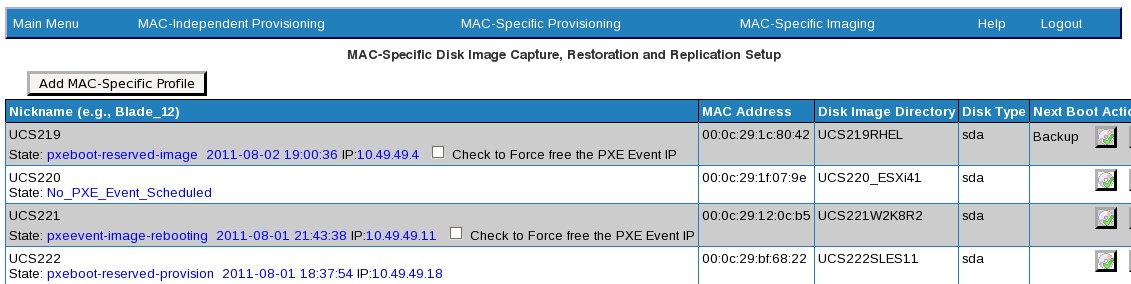
On the Provisioner PXE Server main menu, select the Imaging Profiles link or select MAC-Specific Imaging on the navigation bar. The Provisioner PXE Server opens the MAC-Specific Imaging page, shown below:
Disk Imaging Profiles Page
Notes the buttons under the column labeled “Next Boot Action”:
•The green check mark will cause the word “Backup” to appear in the column and will start a backup the next time the client system boots to the network.
•The yellow “Caution” triangle will cause the word “Restore” to appear in the column and will start a system restore the next time your client system boots to the network. ALL FILES ON YOUR SYSTEM WILL BE OVERWRITTEN!
•The yellow arrows are the “Reset” function, and will clear the column of any text labels.
Before a backup:
Action after backup or restore: upon completing a backup or a restore, the Provisioner PXE Server will reset itself to take no action at the next network boot, and the client system will automatically reboot.
Restore a directory if no backup has been performed:The backup directory will be created only at the time the first backup. If you attempt to restore a system using a Snapshot Directory that does not exist, you will see a red bold message appear above the Imaging Dashboard table similar to:
Failed to activate restore for MAC_00-29-0C-A1-B2-01, there is no backup to restore
Priorities for Next Network Boot Actions: Imaging, then Provisioning
oDisk Imaging actions (backup and restore) take priority over provisioning actions. After an imaging action, the client system will boot from its local hard drive.
The restore operation will overwrite the client's entire hard drive.
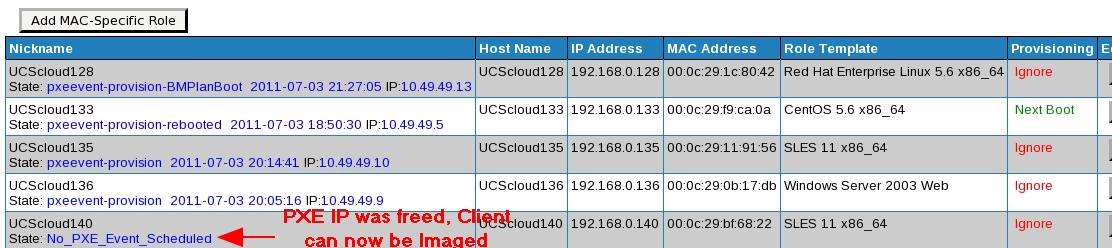
Understanding PXE Event States and PXE IP Addresses is important. PXE Event States describe the progression of Imaging events. PXE IP addresses must be available to image Client systems. If they are not, then need to be "freed", using the checkbox in the Imaging Dashboard Profile for each system:
If you the MAC of the client already has a PXE IP assigned to it, for example, because you provisioned the system and it still resides on the Provisioning VLAN, or because it was left in an "in-between state" after a failure, you will see an error message similar to:
If you see the message message above, if you see the "Check to Force free the PXE Event IP" checkbox, click it, then commit either a Backup or Restore action:
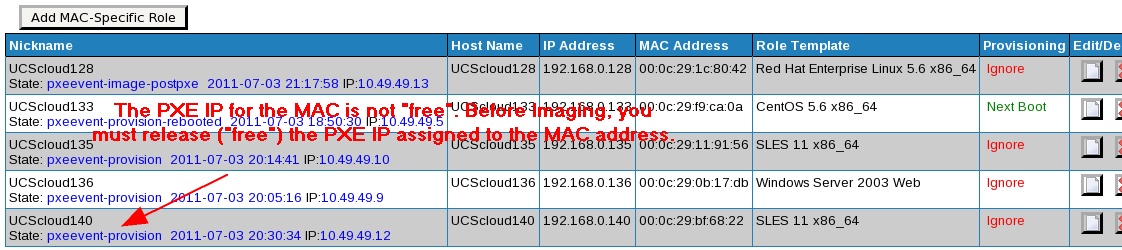
If your Profile does not show the "Check to Force free the PXE Event IP" checkbox, you must go to the MAC-Specific Provisioning Dashboard, located MAC associated with the PXE Event IP:
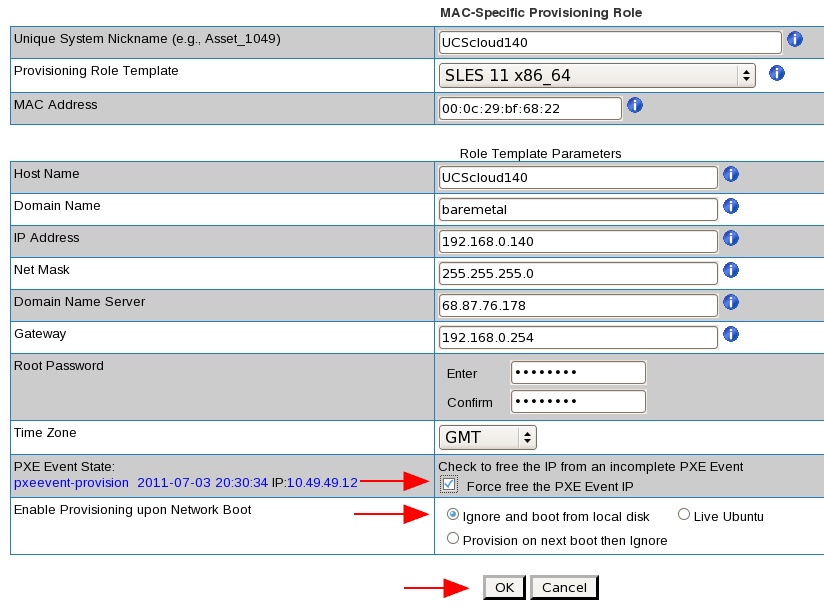
Edit the Role, free the IP and set to "Ignore":
You have now released the PXE IP from the MAC address of the Client, and can set the action for your Imaging Profile:
Because the Image Snapshot occurs after you have properly shut down the system before booting it to the network, there will be very high file, application and database integrity since none of the applications or services were running during the backup. This also means that your system is unavailable for use during backup or restore.
If you have created an Imaging Profile, and set it to either “Backup” or “Restore” and wish to change the contents of the Profile, first “Reset” the “Next Boot Action”, then edit the Profile and save your changes, and then change to “Next Boot Action” to either “Backup” or “Restore”. In this way, the changes to the Profile will be properly recorded.




 The restore operation will overwrite the client's entire hard drive.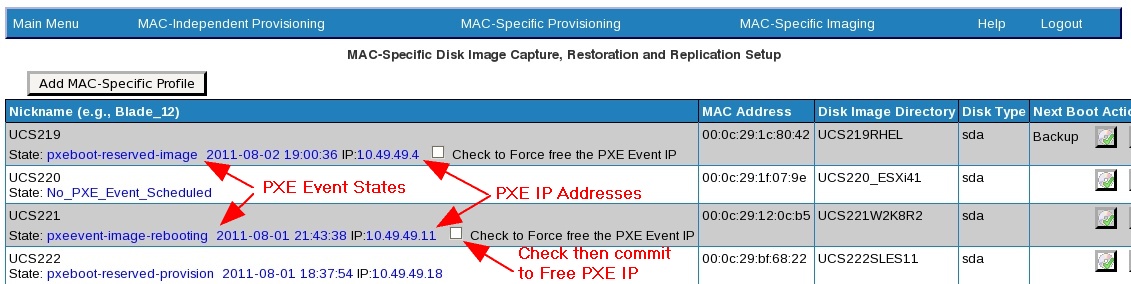


 Because the Image Snapshot occurs after you have properly shut down the system before booting it to the network, there will be very high file, application and database integrity since none of the applications or services were running during the backup. This also means that your system is unavailable for use during backup or restore.