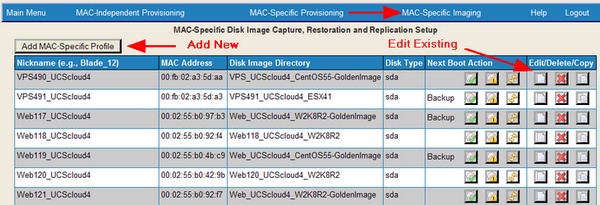
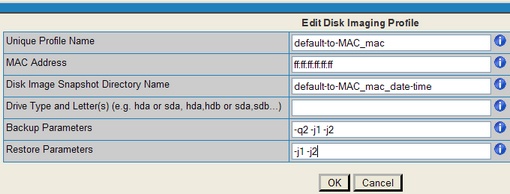
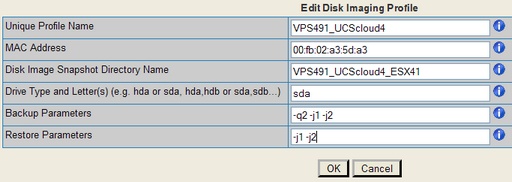
Clonezilla Backup and Restore imaging parameters were introduced with Cisco Server Provisioner Release 6.1 to address a wide range of options around file system types, partitioning, Master Boot Record (MBR) structures and more.
Please note that certain parameters only apply to Backup or to Restore. For example, the "-q2" backup option (to backup system with VMFS such as ESX, or Ext4) is required only for backup, to ensure the proper system is invoked to detect the file system type. During Restore, no explicit parameter is required.
Note: the following list of parameters applies to the entire Clonezilla system, most of which are implemented in the Provisioning Server. Many of these parameters are intended for use only with Clonezilla Live when using the "Live Ubuntu" Rescue System.
Backup Parameters
-j2, --clone-hidden-data Use dd to clone the image of the data between MBR (1st sector, i.e. 512 bytes) and 1st partition, which might be useful for some recovery tool.
-sc Skip file system type checking (use for ESX or whenever the message "Broken partition images" appears on the client due to "dd" type partitions being backed up and checked). The image checking after saving is turned on by default.
-z0, --no-compress Don't compress when saving: very fast but very big image file (NOT compatible with multicast restoring!!!)
-z1, --gzip-compress Compress using gzip when saving: fast and small image file (default)
-z1p, --smp-gzip-compress Compress using parallel gzip program (pigz) when saving: fast and small image file, good for multi-core or multi-CPU machine
-z2, --bz2-compress Compress using bzip2 when saving: slow but smallest image file
-z2p, --smp-bzip2-compress Compress using parallel bzip2 program (pbzip2) when saving: faster and smallest image file, good for multi-core or multi-CPU machine
-z3, --lzo-compress Compress using lzop when saving: similar to the size by gzip, but faster than gzip.
-z4, --lzma-compress Compress using lzma when saving: slow but smallest image file, faster decompression than bzip2.
-z5, --xz-compress Compress using xz when saving: slow but smallest image file, faster decompression than bzip2.
-z5p, --smp-xz-compress Compress using parallel xz when saving: slow but smallest image file, faster decompression than bzip2.
-z6, --lzip-compress Compress using lzip when saving: slow but smallest image file, faster decompression than bzip2.
-z6p, --smp-lzip-compress Compress using parallel lzip when saving: slow but smallest image file, faster decompression than bzip2.
-ntfs-ok, --ntfs-ok Assume the NTFS integrity is OK, do NOT check again (for ntfsclone only)
-q, --use-ntfsclone If the partition to be saved is NTFS, use program ntfsclone instead of partimage (i.e. Priority: ntfsclone > partimage > dd)
-q1, --force-to-use-dd Force to use dd to save partition(s) (inefficient method, very slow, but works for all the file system).
-q2, --use-partclone Use partclone to save partition(s) (i.e. partclone > partimage > dd).
-gm, --gen-md5sum Generate the MD5 checksum for the image. Later you can use -cm|--check-md5sum option to check the image when restoring the image. Note! It might take a lot of time to generate if the image size is large.
-gs, --gen-sha1sum Generate the SHA1 checksum for the image. Later you can use -cs|--check-sha1sum option to check the image when restoring the image. Note! It might take a lot of time to generate if the image size is large.
-i, --image-size SIZE Set the split image file volume size SIZE (MB). When ocs-sr is run with -x, the default SIZE is set as 2000, if without -x, we will not split it
Restore Parameters
-g, --grub-install GRUB_PARTITION Install grub in the MBR of the disk containing partition GRUB_PARTITION with root grub directory in the same GRUB_PARTITION when restoration finishs, GRUB_PARTITION can be one of "/dev/hda1", "/dev/hda2"... or "auto" ("auto" will let clonezilla detect the grub root partition automatically). If "auto" is assigned, it will work if grub partition and root partition are not in the same partition.
-r, --resize-partition Resize the partition when restoration finishes, this will try to fix the problem when small partition image is restored to larger partition. Warning!!! Use this carefully... Backup your data first
-k, --no-fdisk, --no-create-partition Do NOT create partition in target harddisk. If this option is set, you must make sure there is an existing partition table in the current restored harddisk. Default is Yes
-k1, Create partition table in the target disk proportionally.
-k2, Enter command line prompt to create partition table manually before restoring image.
-t, --no-restore-mbr Do NOT restore the MBR (Mater Boot Record) when restoring image. If this option is set, you must make sure there is an existing MBR in the current restored harddisk. Default is Yes
-u, --select-img-in-client Input the image name in clients
-e, --load-geometry Force to use the saved CHS (cylinders, heads, sectors) when using sfdisk
-e1, --change-geometry NTFS-BOOT-PARTITION Force to change the CHS (cylinders, heads, sectors) value of NTFS boot partitoin after image is restored. NTFS-BOOT-PARTITION can be one of "/dev/hda1", "/dev/hda2"... or "auto" ("auto" will let clonezilla detect the NTFS boot partition automatically)
-e2, --load-geometry-from-edd Force to use the CHS (cylinders, heads, sectors) from EDD (Enhanced Disk Device) when creating partition table by sfdisk
-y, -y0, --always-restore, --always-restore-default-local Let Clonezilla server as restore server, i.e. client will always has restore mode to choose (However default mode in PXE menu is local boot)
-y1, --always-restore-default-clone Let Clonezilla server as restore server, i.e. client will always has restore mode to choose (The default mode in PXE menu is clone, so if client boots, it will enter clone always, i.e. clone forever)
-j, --create-part-by-sfdisk Use sfdisk to create partition table instead of using dd to dump the partition table from saved image (This is default)
-j0, --create-part-by-dd Use dd to dump the partition table from saved image instead of sfdisk. ///Note/// This does NOT work when logical drives exist.
-j1, --dump-mbr-in-the-end Use dd to dump the MBR (total 512 bytes, i.e. 446 bytes (executable code area) + 64 bytes (table of primary partitions) + 2 bytes (MBR signature; # 0xAA55) = 512 bytes) after disk image was restored. This is an insurance for some hard drive has different numbers of cylinder, head and sector between image was saved and restored.
-j2, --clone-hidden-data Use dd to clone the image of the data between MBR (1st sector, i.e. 512 bytes) and 1st partition, which might be useful for some recovery tool.
-hn0 PREFIX Change the hostname of M$ Windows based on the combination of hostname prefix and IP address, i.e. PREFIX-IP
-hn1 PREFIX Change the hostname of M$ Windows based on the combination of hostname prefix and NIC MAC address, i.e. PREFIX-MAC
--max-time-to-wait TIME When not enough clients have connected (but at least one), start anyways when TIME seconds since first client connection have pased. This option is used with --clients-to-wait
-cm, --check-md5sum Check the MD5 checksum for the image. To use this option, you must enable -gm|--gen-md5sum option when the image is saved. Note! It might take a lot of time to check if the image size is large.
-cs, --check-sha1sum Check the SHA1 checksum for the image. To use this option, you must enable -gs|--gen-sha1sum option when the image is saved. Note! It might take a lot of time to check if the image size is large.
--mcast-port NO Assign the udp port number for multicast restore. This is used by clonezilla server. Normally it's not necessary to manually assign this option.
General Parameters
-l, --language INDEX Set the language to be shown by index number:
[0|en_US.UTF-8]: English,
[1|zh_TW.BIG5]: Traditional Chinese (Big5) - Taiwan,
[2|zh_TW.UTF-8]: Traditional Chinese (UTF-8, Unicode) - Taiwan
[a|ask]: Prompt to ask the language index
-b, --batch Run ocs-sr in batch mode, i.e. without any prompt or wait to press enter
-c, --confirm Wait for confirmation before saving or restoring
-d, --debug-mode Enter command mode to debug before saving/restoring
--debug=LEVEL Output the partimage debug log in directory /var/log/ with debug LEVEL (0,1,2... default=0)
-m, --module MODULE Force to load kernel module MODULE, this is useful when some SCSI device is not detected. NOTE! Use only one module, more than one may cause parsing problem.
-o0, --run-prerun-dir Run the script in the direcoty /opt/drbl/share/ocs/postrun before clone is started. The command will be run before MBR is created or saved.
-o1, -o, --run-postrun-dir Run the script in the direcoty /opt/drbl/share/ocs/postrun when clone is finished. The command will be run before that assigned in -p or --postaction.
-w, --wait-time TIME Wait for TIME secs before saving/restoring
--nogui Do not show GUI of partimage, use text only
-a, --no-force-dma-on Do not force to turn on HD DMA
-mp, --mount-point MOUNT_POINT Use NFS to mount MOUNT_POINT as directory ocsroot (ocsroot is assigned in drbl.conf)
-or, --ocsroot DIR Specify DIR (absolute path) as directory ocsroot (i.e. overwrite the ocsroot assigned in drbl.conf)
-p, --postaction [choose|poweroff|reboot|command|CMD] When save/restoration finishs, choose action in the client, poweroff, reboot (default), in command prompt or run CMD
-ns, --ntfs-progress-in-image-dir Save the ntfsclone progress tmp file in the image dir so that if cloning is in DRBL client, the progress can be check in the server (Default in to be put in local /tmp/, which is local tmpfs).
-um, --user-mode [beginner|expert] Specify the mode to use. If not specified, default mode is for a beginner.
-v, --verbose Prints verbose information
-d0, --dialog Use dialog
-d1, --Xdialog Use Xdialog
-d2, --whiptail Use whiptail
-d3, --gdialog Use gdialog
-d4, --kdialog Use kdialog
-x, --interactive Interactive mode to save or restore.
|