

Cisco Cloud Managed Services (CMS) |

|

|

|

|
||
Cisco Cloud Managed Services (CMS) |
|
|
|

|

|
Cisco Cloud Managed Services (CMS) |
|
|
|
|
||
Cisco Cloud Managed Services (CMS) |
|
|
|
|
|
|
|
||
This page documents how to use Provisioner's GUI in a typical Cisco Cloud Managed Services environment. Please note however that a Cisco CMS production environment will use the Cisco Process Orchestrator to automate most Provisioner functions.
IP addresses are either omitted, private or incorrect for security purposes.
Getting started:
•In order to add operating systems or hypervisors to the list of deployable payloads, please read the tutorials for preparing and provisioning Windows Server, ESXi and RHEL & CentOS.
•Provisioner can also perform bare metal imaging to back up, restore and "clone" (make these 10 blades just like that one) UCS B-Series blades that share the same hardware configuration.
•Provisioner can deploy RAM-resident rescue operating systems such as Live Ubuntu with Clonezilla to access on disk contents of a blade that will not boot due to on-disk corruption, copy critical data to and from the blade and/or erase all disk contents of a blade's disk.
•Review the Video Tutorials
Example: using Cisco Server Provisioner in a Cisco CMS environment to provision Windows Server 2008 R2 on a UCS B200-M3 blade.
The typical Cisco CMS Provisioner PXE Server is configured to provision Windows Server 2008 R2, Windows Server 2012 R2, ESXi 5.x, Red Hat Enterprise Linux 5.x & 6.x and CentOS 5.x & 6.x.
Phase 1: prepare Provisioner with the correct OS payload and the target blade's network settings
Login to the Provisioner PXE Server Application GUI
Review the list of available Templates (OS payloads):
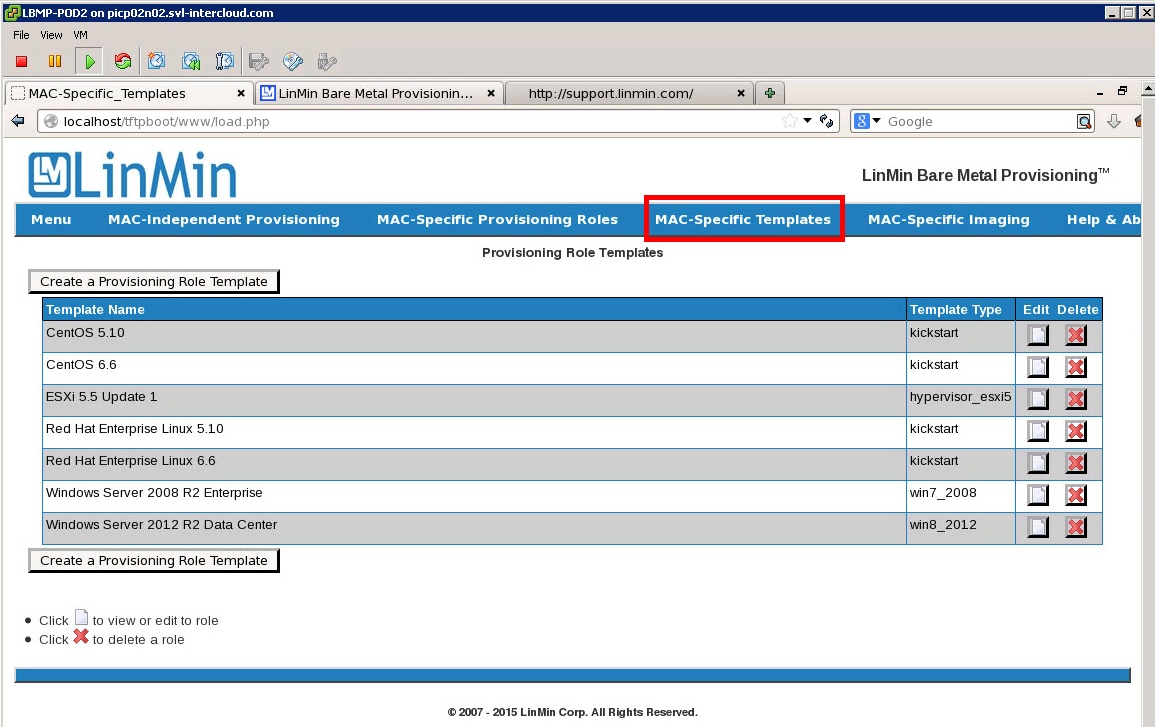
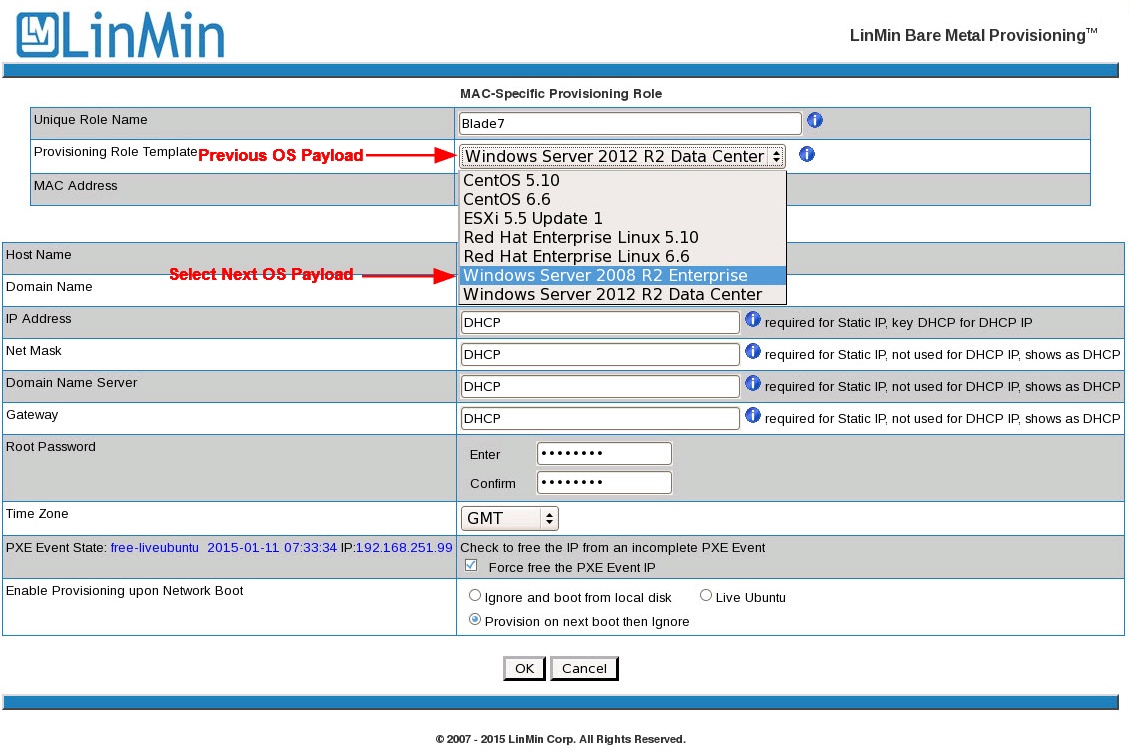
Access the MAC-Specific Provisioning Role for a given blade and change its next OS payload.
In the example below, Windows Server 2008 R2 will be provisioned with DHCP settings (this task can be automated with the Cisco Process Orchestrator):
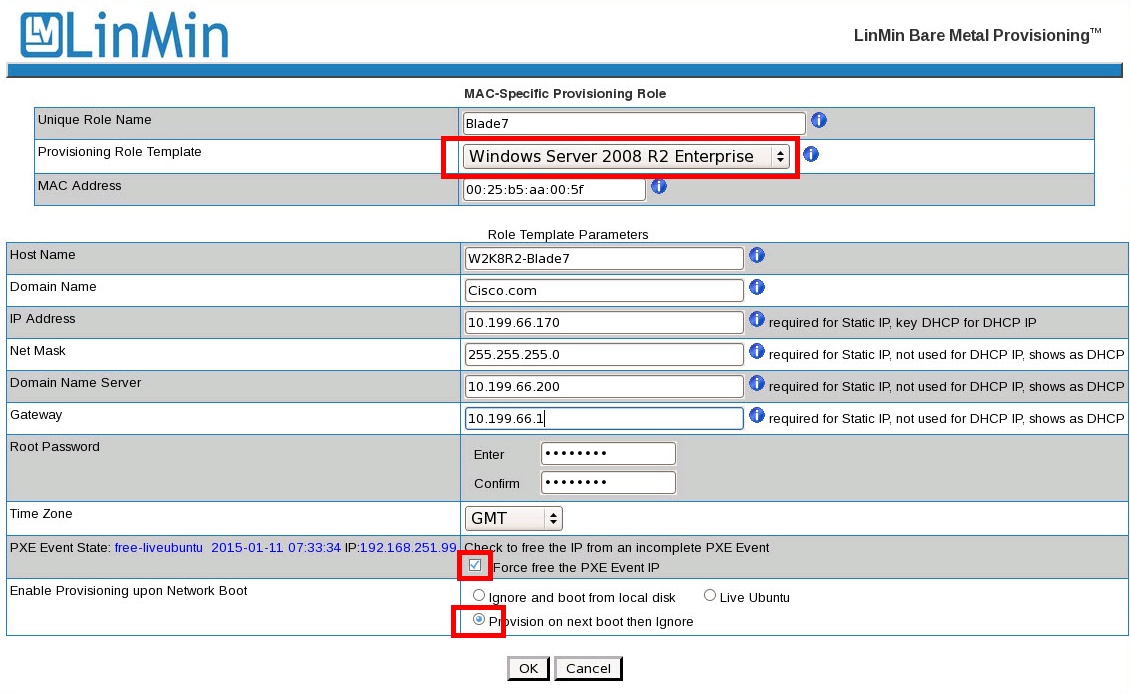
Or change the networking values for Windows Server from DHCP to Static IP settings, then toggle the radio button "Provision on next boot" and click "OK" (this task can be automated with the Cisco Process Orchestrator):
After clicking OK, you will be brought to the MAC-Specific Provisioning Roles Dashboard (containing a single blade in this case), and see that "Next Boot" is correctly set (this task can be automated with the Cisco Process Orchestrator):
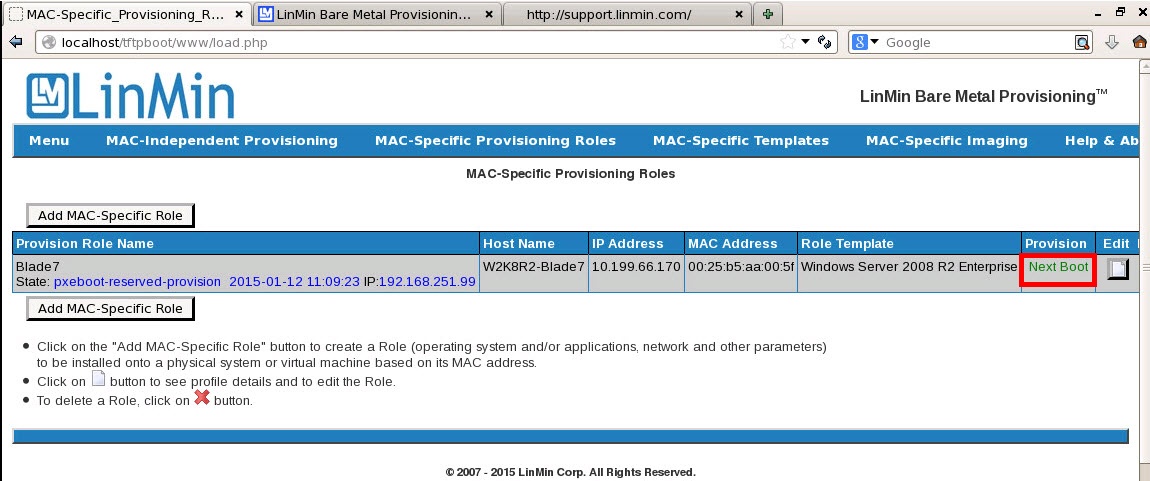
The Provisioner PXE Server is now ready and awaits for the system with MAC address 00:25:b5:aa:00:5f to PXE boot.
Phase 2: prepare then PXE-boot the UCS blade
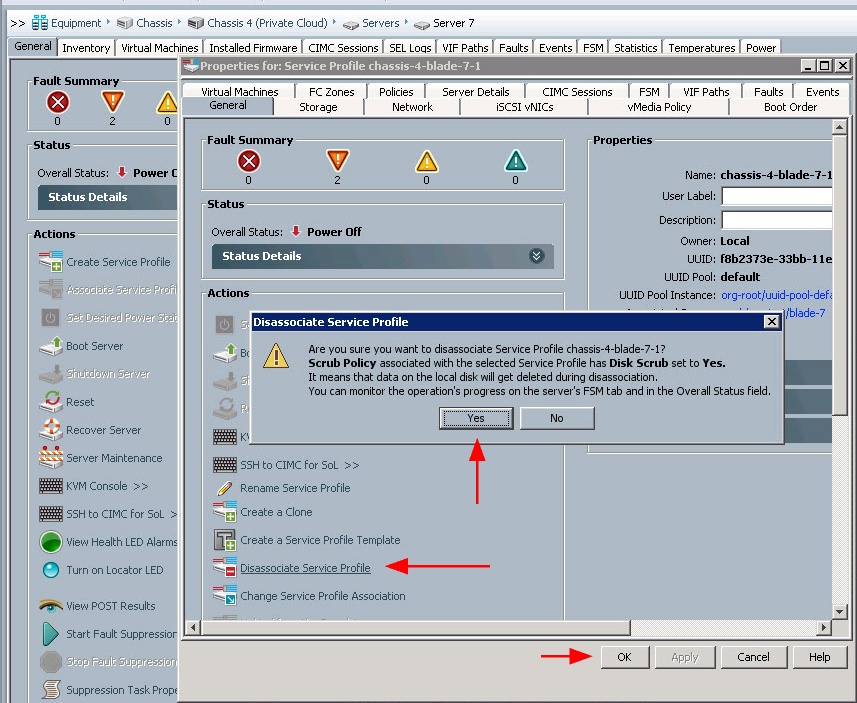
In a UCS environment, it is recommended that the blade's Service Profile be first dissassociated then re-associated, as the Disk Scrub feature erases the disks' prior contents.
First disassociate the Service Profile:
Then associate the Service Profile:
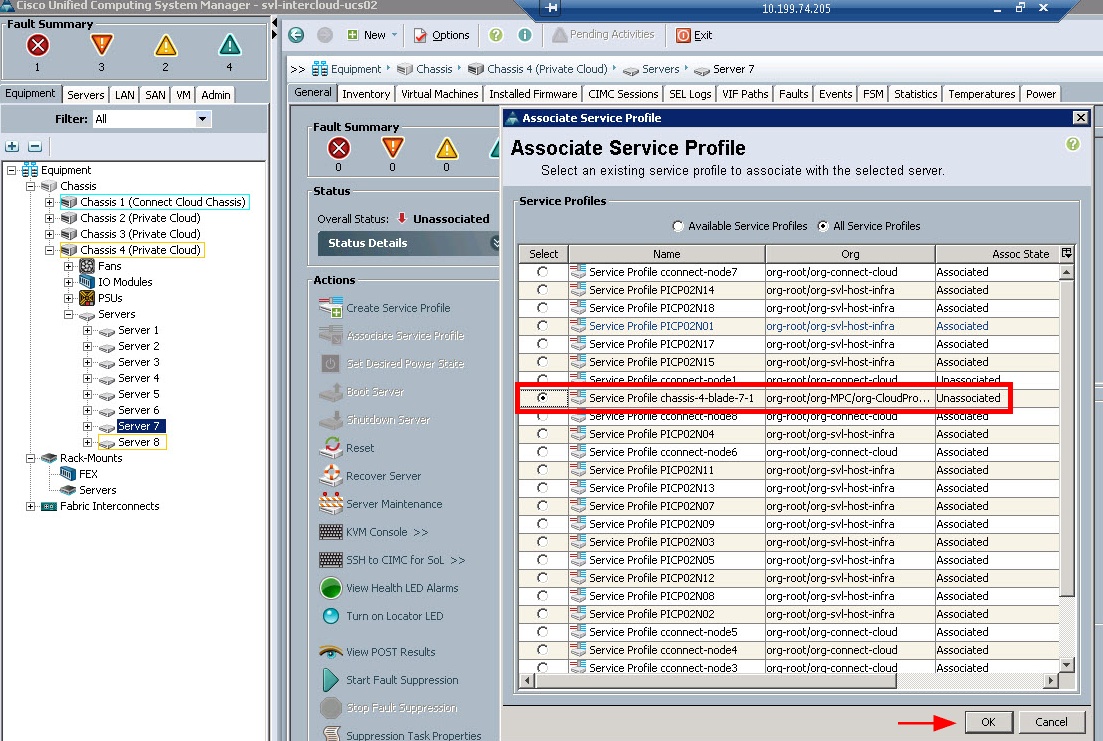
Note: in a non-UCS environment or in a UCS environment when Service Profiles are not first disassociated then re-associated, one can use Live Ubuntu to erase disk contents of the target Client system as certain operating systems cannot be installed on top of unrecognized file systems from a previously installed operating system.
Power on the UCS blade and watch Windows Server 2008 R2 be provisioned:
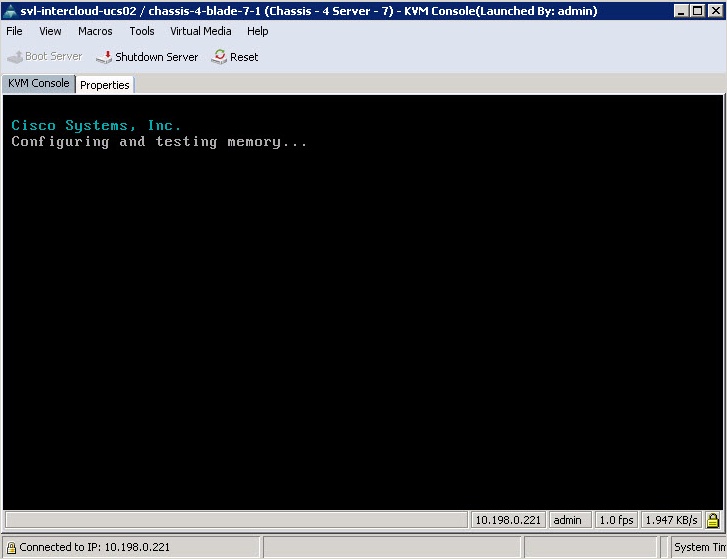
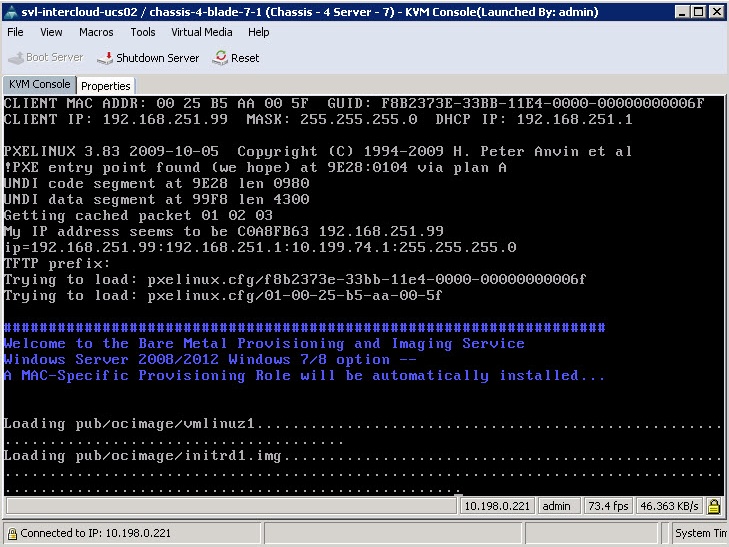
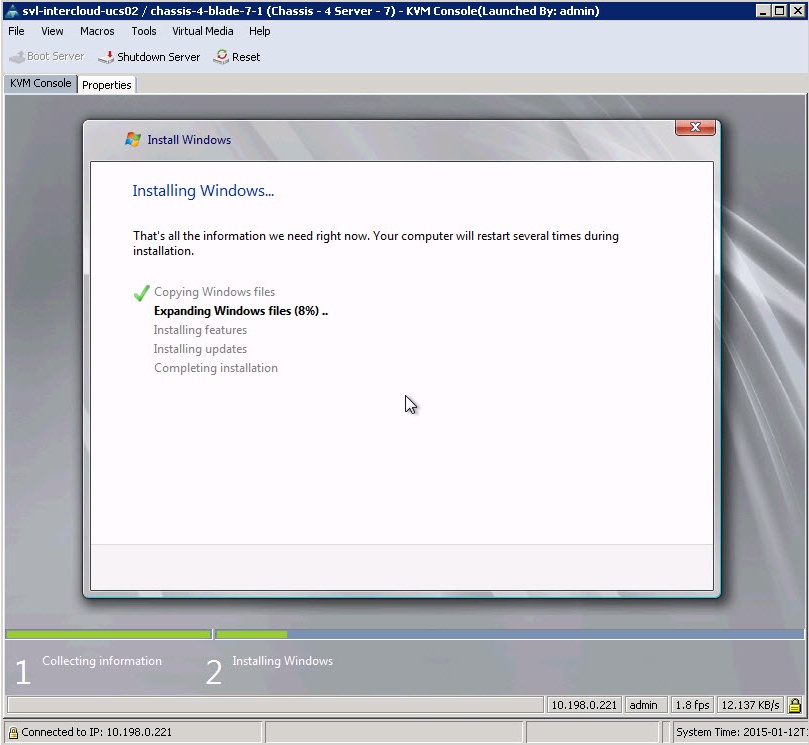
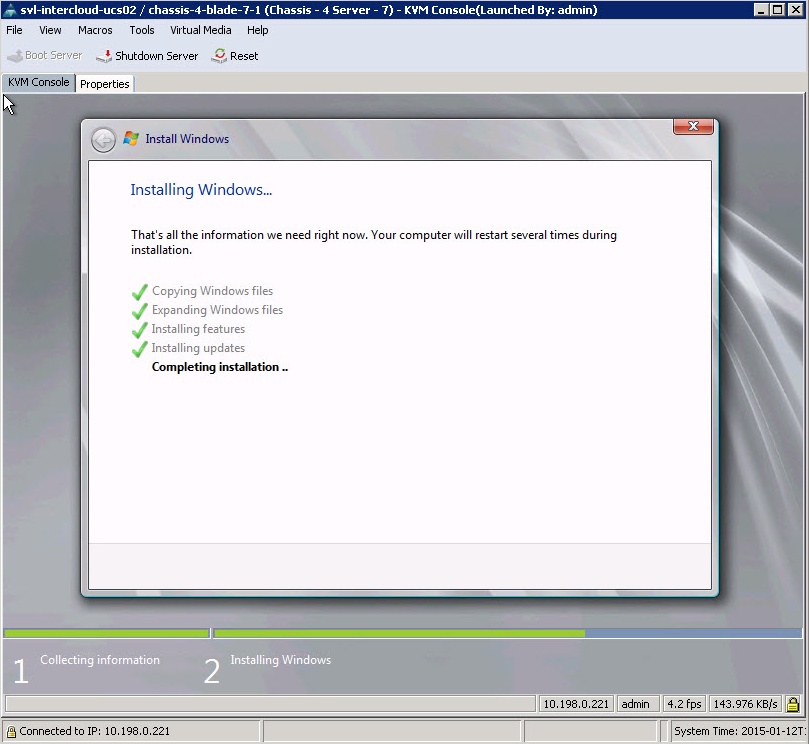
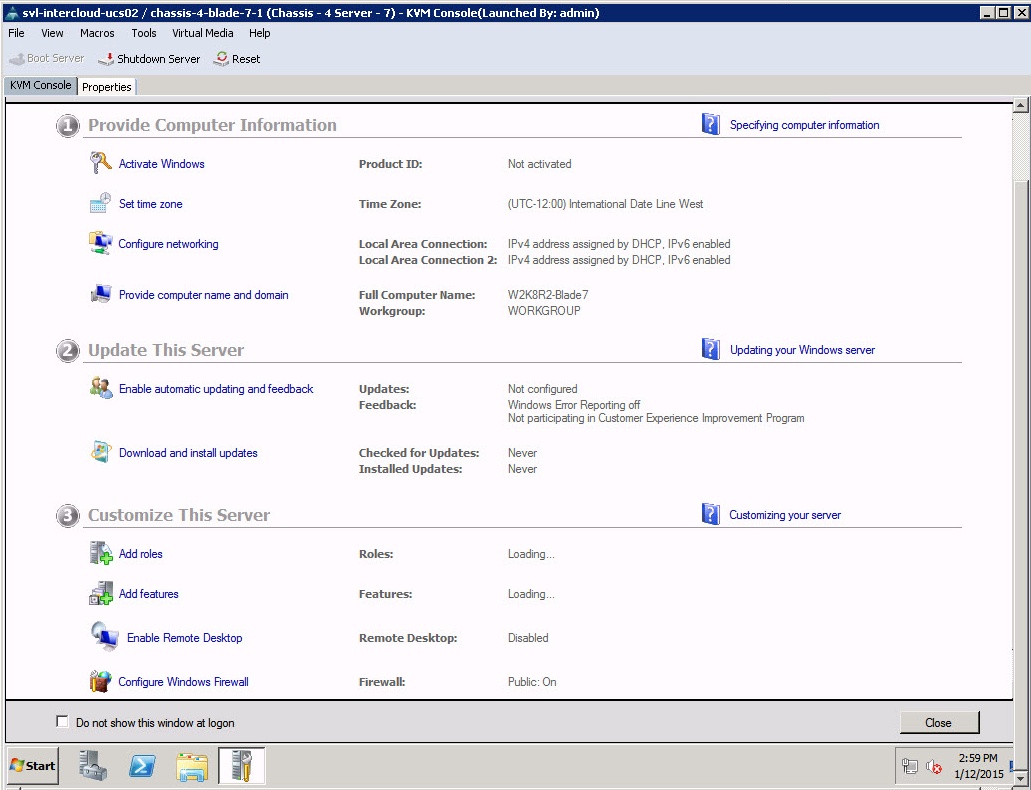
The UCS blade has now been provisioned with Windows Server:
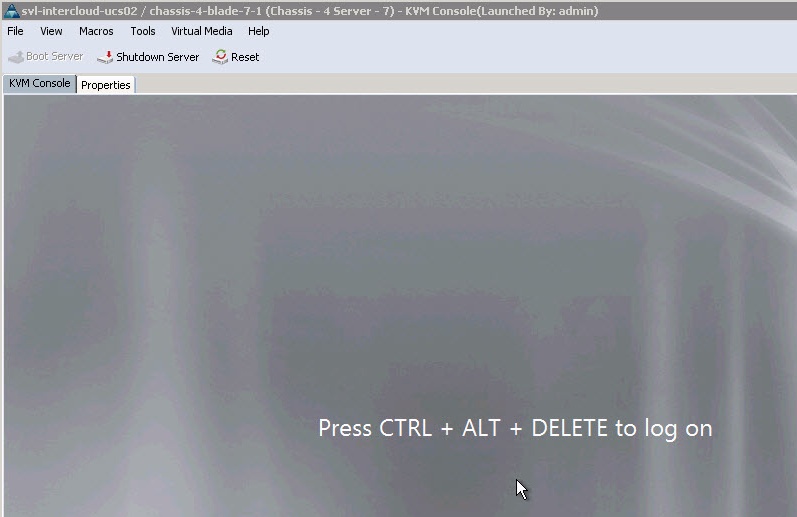
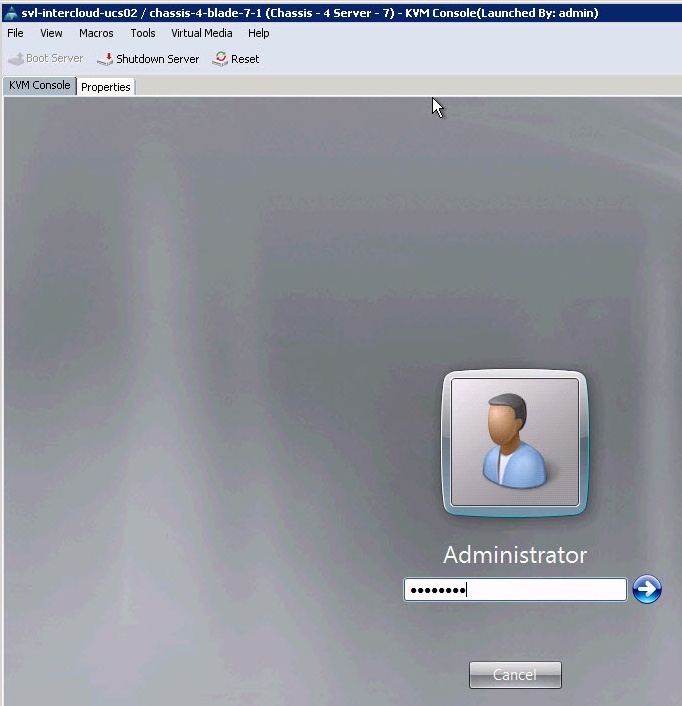
Login using the password you entered in Provisioner's MAC-Specific Provisioning Role:
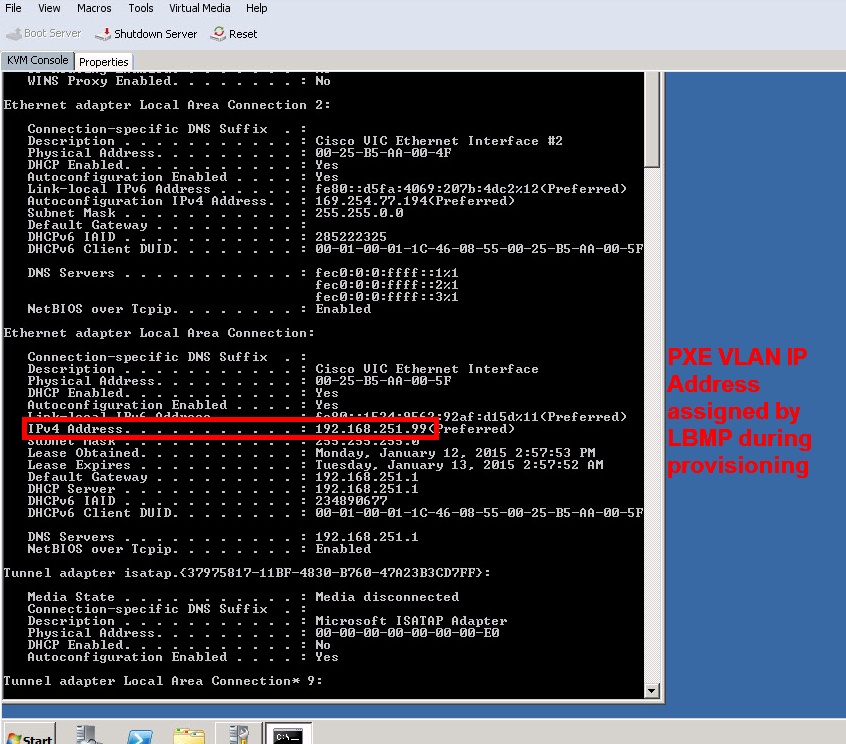
Performing ipconfig /all on the blade will show its current PXE VLAN IP address assigned by Provisioner:
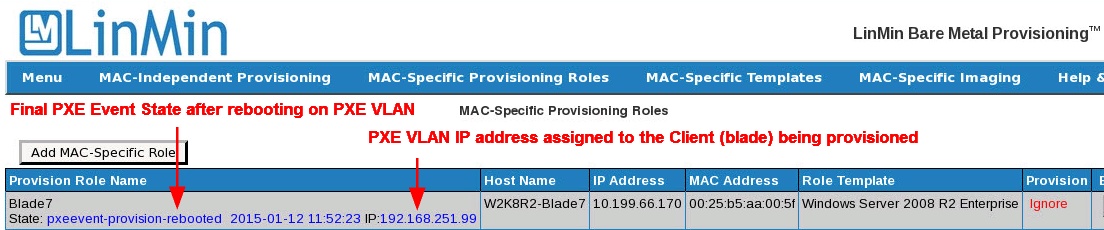
On the Provisioner MAC-Specific Provisioning Roles Dashboard you will see the final PXE Event State of the provisioned blade ("pxeevent-provision-rebooted") and the client's IP address.
Once the provisioned blade has been shut down, relocated to its production VLAN and been powered on, the final networking settings will be set:
•DHCP IP from the production VLAN DHCP server if the blade was provisioned using the "DHCP" option, or
•Static IP as specified in the MAC-Specific Provisioning Role
