Provision your System with Windows Server 2012 & 2008 or Windows 7 & 8
User's Guide feedback on: Cisco Server Provisioner 6.6 User's Guide ("Chuck Berry") - Provision your System with Windows Server 2012 & 2008 or Windows 7 & 8Provision_w2k8_Provision_your_SystemTutorial: Provision Windows Server 2012 & 2008 and Windows 8 & 7 > Provision your System with Windows Server 2012 & 2008 or Windows 7 & 8 /Dear User's Guide Staff,
Provision your System with Windows Server 2012 & 2008 or Windows 7 & 8
After you have created your MAC-Indy Role or your MAC-Spec Role, simply power up the system and boot to the network (hit "F12" if your BIOS settings are not set to "Boot to the Network First") and your system will be provisioned:
•MAC-Specific: your system will be automatically provisioned and will reboot when done
•MAC-Independent: you will be presented with the list of operating system installation selections and you will enter your selection from the keyboard (unless you have selected a "Default", in which case, that operating system will be automatically installed).
Note on IP address assignments of Windows clients:
If a Windows host configured for DHCP cannot obtain a network address via DHCP, an address from 169.254.1.0 to 169.254.254.255 may be assigned pseudorandomly. Source: http://en.wikipedia.org/wiki/Private_network
If no active NICs are discovered, you can use "ipconfig /all" to verify this state. Furthermore, you can use the following command stream:
ipconfig /release
* this may fail with nothing to release
ipconfig /renew
* this should fail with no connection found
ipconfig /all
* this will again show no connection was made
With UCS Manager, this usually indicates that the system's primary NIC is not properly configured into the "moved to" vLAN. The UCS profile(s) should thus be checked.
Note: after you have provisioned a Windows system on the PXE VLAN, either shut it down or move it from the PXE VLAN to the production VLAN. Otherwise, Windows services on the system you just provisioned will interfere with the PXE VLAN DHCP and other services.
Client IP Address and PXE Event States
Starting with the Chuck Berry Supplemental Package that supports the provisioning of Windows Server 2012 and Windows 8, systems provisioned with Windows Server 2012 & 2008 and Windows 8 & 7 will have their IP addresses set as follows:
•MAC-Specific Provisioning with Static IP: upon rebooting on the PXE VLAN, the IP address will be set to static as defined in the MAC-Specific Provisioning Role and cannot be reached via IP while on the PXE VLAN. Upon relocating the Windows client system to the correct production (non-PXE) VLAN, it will be reachable via IP address. The final PXE Event State is "pxeevent-provision-rebooted".
•MAC-Specific Provisioning with Dynamic (DHCP) IP: upon rebooting on the PXE VLAN, the IP address will be DHCP serviced by the Provisioner PXE Server. Upon relocating the Windows client system to the correct production (non-PXE) VLAN serviced with DHCP, it will be assigned a new DHCP IP address. The final PXE Event State is "pxeevent-provision-rebooted".
•MAC-Independent Provisioning: upon rebooting on the PXE VLAN, the IP address will be DHCP serviced by the Provisioner PXE Server. Upon relocating the Windows client system to the correct production (non-PXE) VLAN serviced with DHCP, it will be assigned a new DHCP IP address. The final PXE Event State is "pxeevent-provision-rebooted".
Prior to the Chuck Berry Supplemental Package:
•MAC-Specific Provisioning with Static IP: upon rebooting on the PXE VLAN, the IP address will be set to DHCP. as defined in the MAC-Specific Provisioning Role and cannot be reached via IP while on the PXE VLAN. Upon relocating the Windows client system to the correct production (non-PXE) VLAN and rebooting, the static IP defined in the MAC-Specific Provisioning Role will be set. The final PXE Event State is "pxeevent-provision-rebooted".
•MAC-Independent Provisioning: the final PXE Event State is "pxeevent-macindy-rebooted".
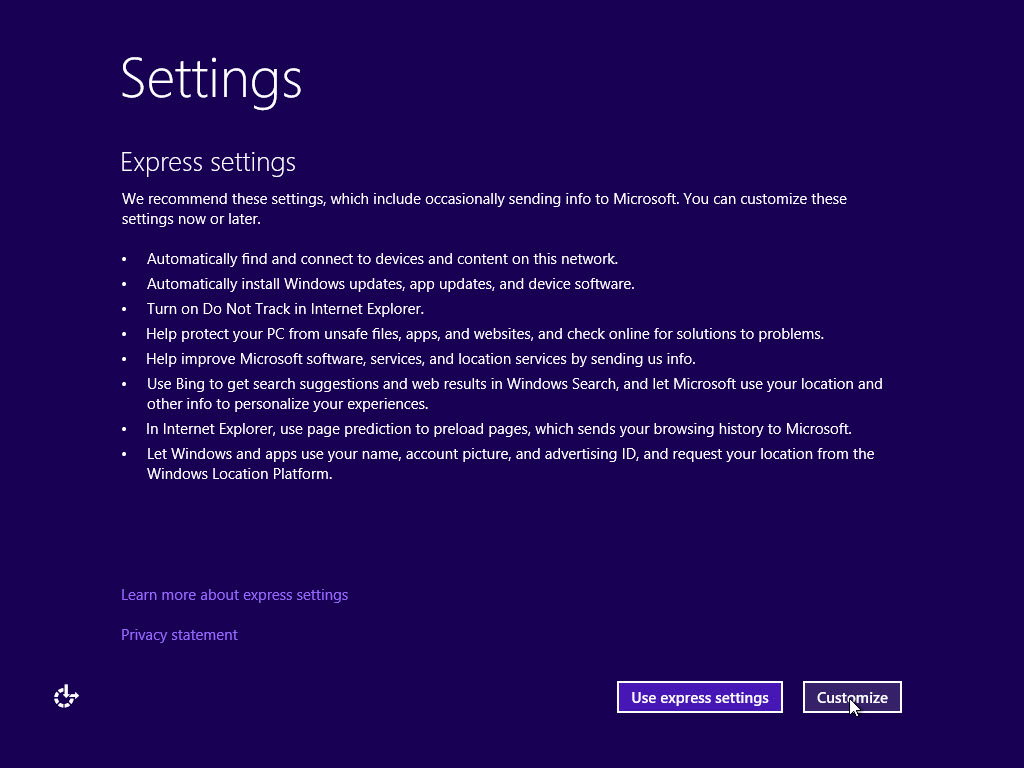
Note: when provisioning Windows 8.1, the expected last screen is:
The user can then customize the Windows 8.1 manually or by scripting (not supported by Cisco.