User's Guide feedback on: Cisco Server Provisioner 6.6 User's Guide ("Chuck Berry") - Imaging Example GeneratorAPI_Imaging_Example_GeneratorAPI: Application Programming Interface > Imaging Example Generator /Dear User's Guide Staff,
Imaging Example Generator
Note: before using the API, it is important that you review the imaging tutorial so you understand Provisioner functionality and limitations when using the GUI.
Use the API Imaging Example Generator to generate sample code to simplify the integration of Cisco Server Provisioner into your application.
The Example Generator produces 2 code samples showing how to call the Provisioner PXE Server API from your application for each possible type of Provisioner function supported by the API (e.g., read, update, delete, etc.):
•Invoking the API through a browser
•Invoking the API through a wget call from a Linux system
•All field contents must be URL-encoded. It is recommended that all values pass through an encoding process
The Example Generator also produces 2 code samples showing how the Provisioner PXE Server API will reply to your application:
•XML with UTF-8-encoded values
•URL-encoded GET string
Before beginning to generate examples with the Generator, be sure you have obtained an APID.
Accessing the Imaging Example Generator
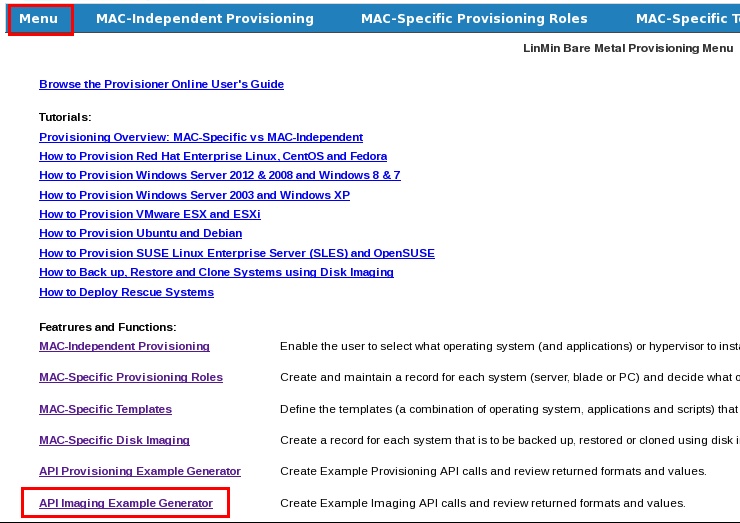
Starting with the Chuck Berry Plus package, the Imaging Example Generator is accessed from the Application GUI Main Menu:
Note: for Provisioner 6.5.1 not upgraded with the Chuck Berry Plus package: the API Imaging Example generator can be accessed with your browser:
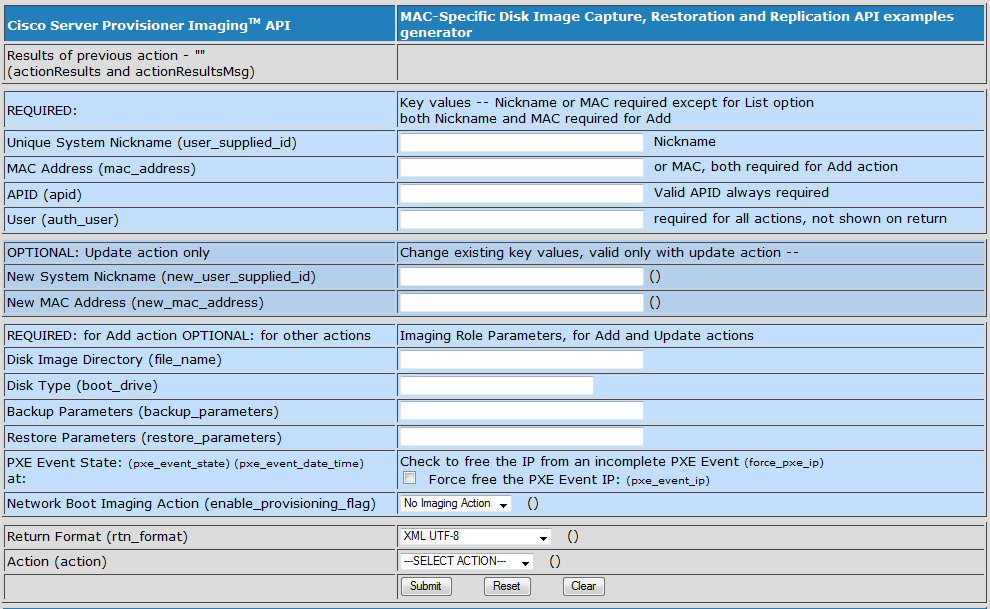
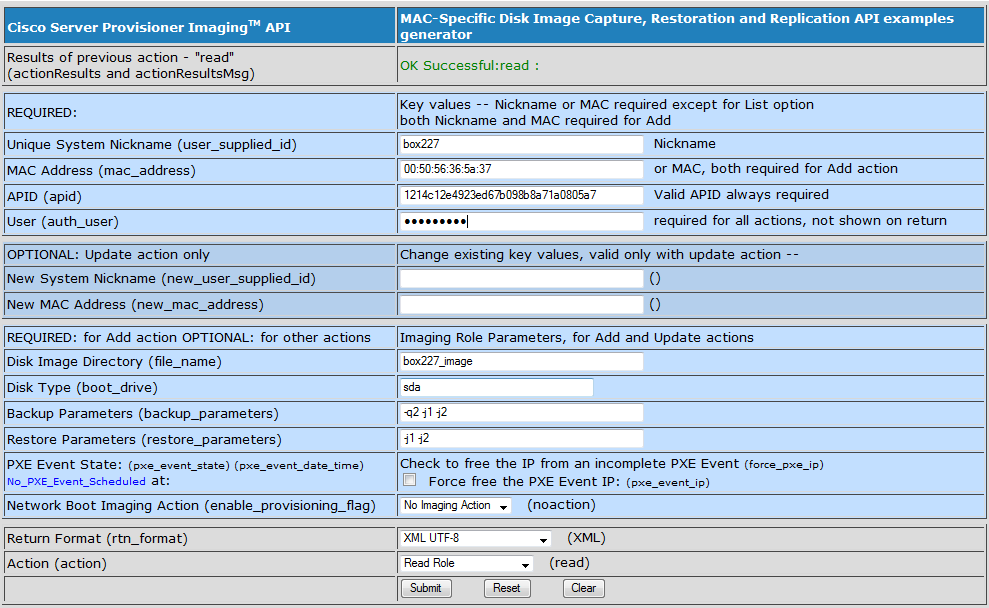
Then, complete the form and specify the Return Format of your choice and the desired action to be taken by the Provisioner PXE Server. In this case, we are adding a system and will have it backed up:
Sample code generated for your application to call the API:
Note: name-value pair, also known as "name quoted value with UTF-8 encoded values" is being deprecated (even though they may appear in the example generator).
Now you have the syntax for how to call the API and for how the API will respond to your application.
Other Imaging API actions include:
Next Boot Actions for each system:
•Backup
•Restore (or clone to a different system with identical hardware)
•No Imaging Action (reset a system previously set to Backup or Restore)
API functions:
•Read (information on an existing system, given the MAC address or Nickname)
•Update (information on an existing system, given the MAC address or Nickname)
•Add (a system and create a Provisioning Role in the database)
•Delete (a system, given a MAC address or Nickname)
•List Roles: return list and information on all systems
•List Backup Directories: returns all backup directory names in the Provisioner PXE Server's default imaging directory
Force Free PXE Event IP:
•Free or release PXE IP addresses to override DHCP address reservation for an aborted or failed PXE event with Update Role action
GUI Interaction:
It is very easy to see if your API call had the intended effect on systems by looking at the Provisioner PXE Server GUI (refresh pages after you have made API calls).
Please read all about Imaging: Backup, Restore and Clone to provide you with the best information while integrating Cisco Server Provisioner into your application.