Cisco UCS Clients |

|

|

|

|
||
Cisco UCS Clients |
|
|

|

|

|
Cisco UCS Clients |
|
|
|
|
||
Cisco UCS Clients |
|
|
|
|
|
|
|
||
The Provisioner User's Guide is not intended as a substitute for UCS and UCS Manager training, documentation, support and hands-on experience.
Cisco Server Provisioner Compatibility Matrix
Configuring your UCS Clients' Networking
Ensure that your UCS clients can boot to the network, including:
1. vNIC configured in the proper VLAN and fabric (a or b): best practice is to define a vNIC template that specifies the VLAN, fabric, QoS, and adapter policy 2. boot order configured to boot off configured vNIC: best practice is to define a boot policy that specifies LAN boot first and then boot disk second
Ensure that the UCS Blade (Bxxx) or Server (Cxxx) to be provisioned or imaged is on the same network/VLAN as Provisioner's PXE VLAN ("Provisioning VLAN").
Only 1 NIC must be active on the UCS Blade or Server. Once provisioned or imaged, apply a different template to configure the client with its production vNIC configuration.
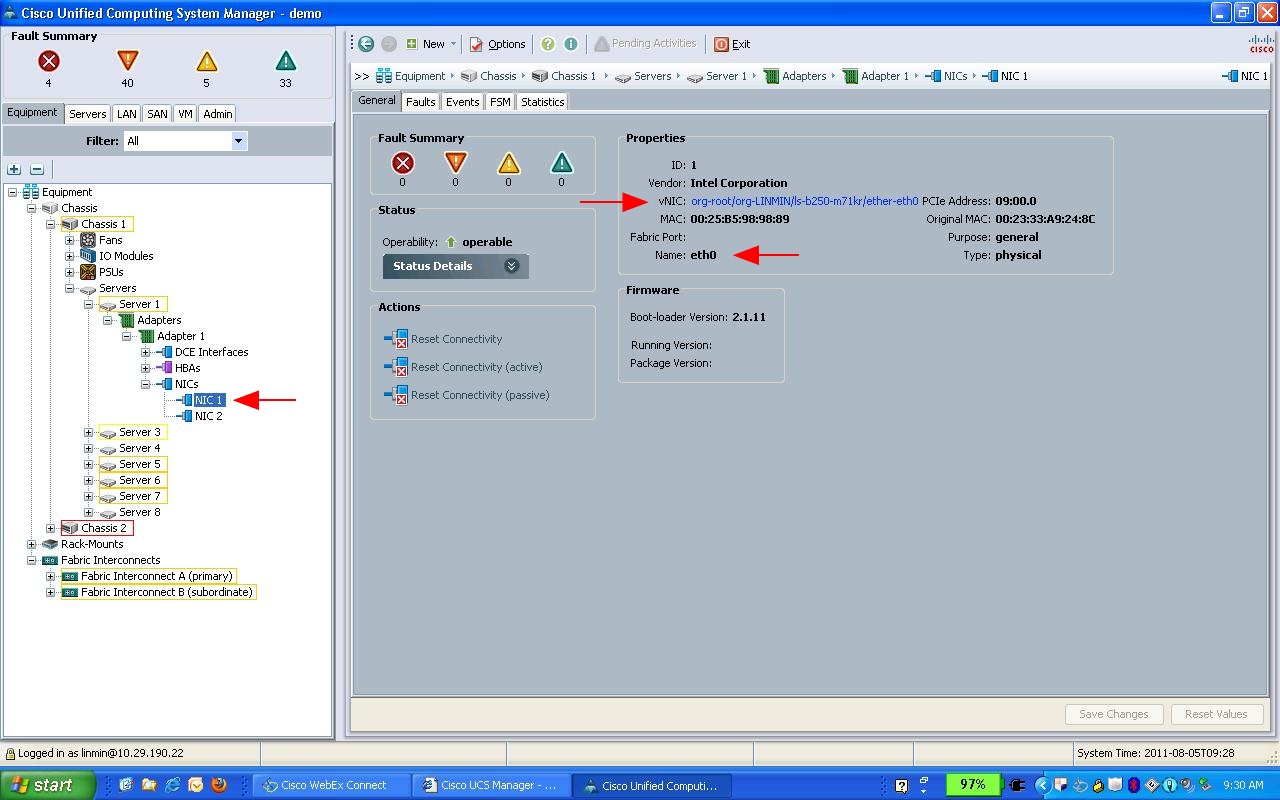
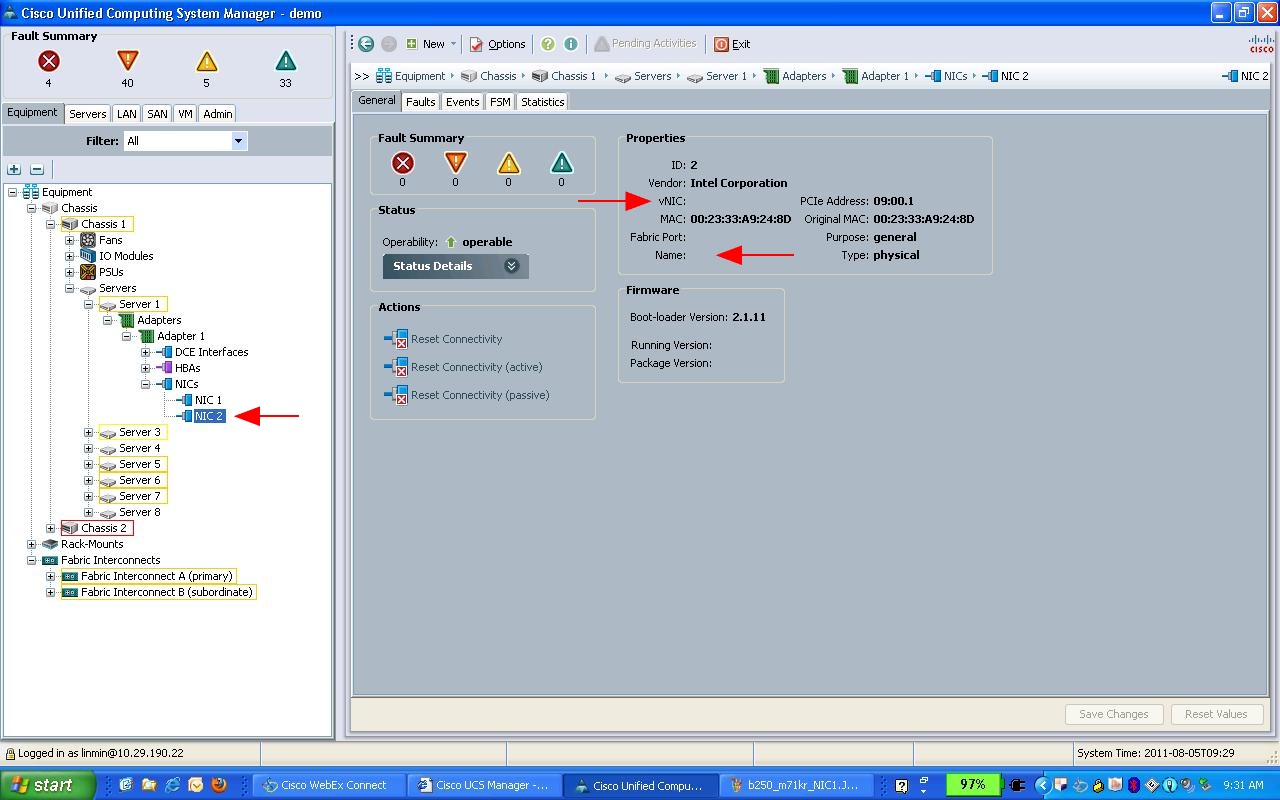
Below are 2 screenshots showing the configuration of vNIC1 (active vNIC) and vNIC2 (inactive vNIC) on a representative B250 blade with an M71KR-Q (Menlo Gen 1) mezzanine card (also note the MAC address that will be used with the Provisioner GUI or API to create the Provisioning Role or Imaging Profile):
Note that the vNIC and Name fields are empty on the inactive vNIC:
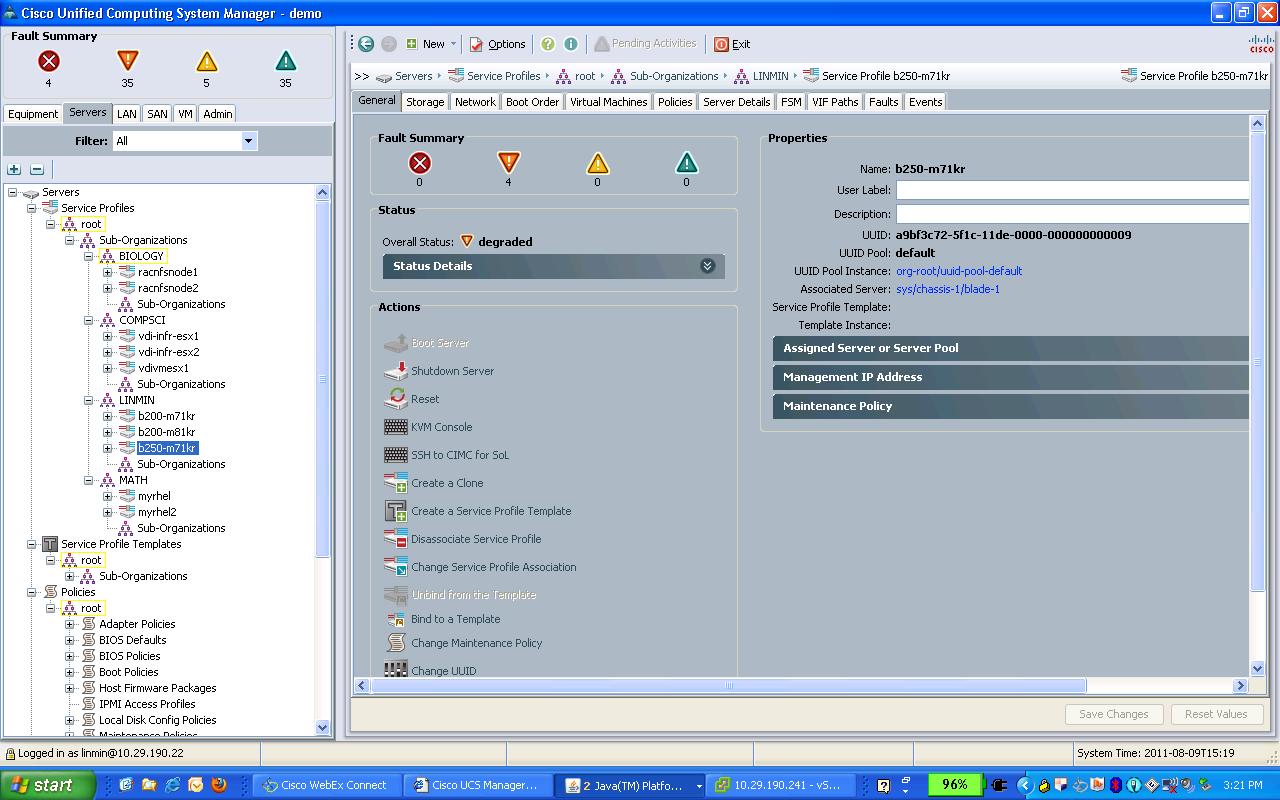
Below is a screenshot of the status of the same UCS blade:
|
Configuring your UCS Clients to provision ESXi
In order to successfully provision ESXi, in addition to the generic UCS blade network configuration requirements described above, follow the instructions below.
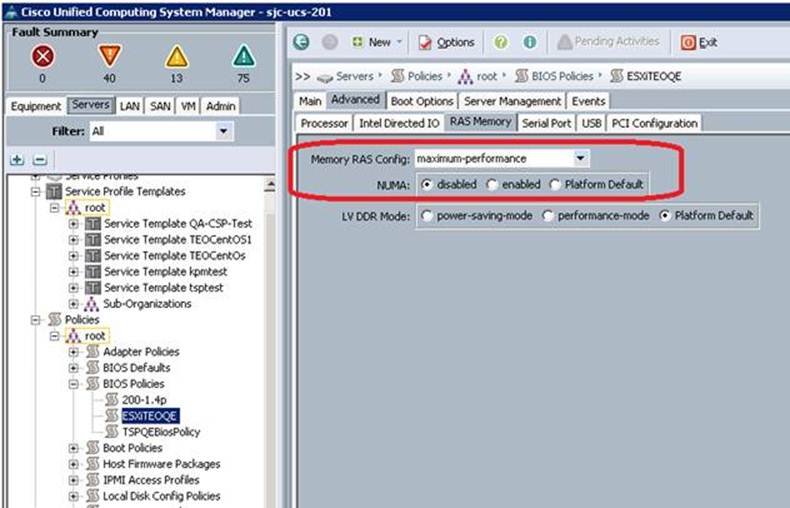
VMware has specific hardware requirements to support the provisioning of ESXi. To enable the provisioning of ESXi on UCS devices, you must modify the Service Profile Template to set RAS Memory NUMA to "Disabled", then create a Server Profile from the modified Service Profile Template. The proper setting for the Service Profile Template is as illustrated below:
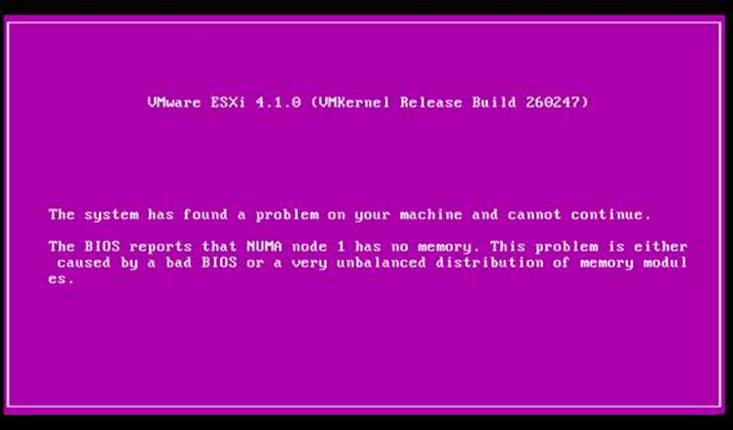
If you do not follow the steps outlined above, you will see the following error message when attempting to provision ESXi on a UCS blade:
|
Provisioning Cisco UCS Blades: Sequence of Events
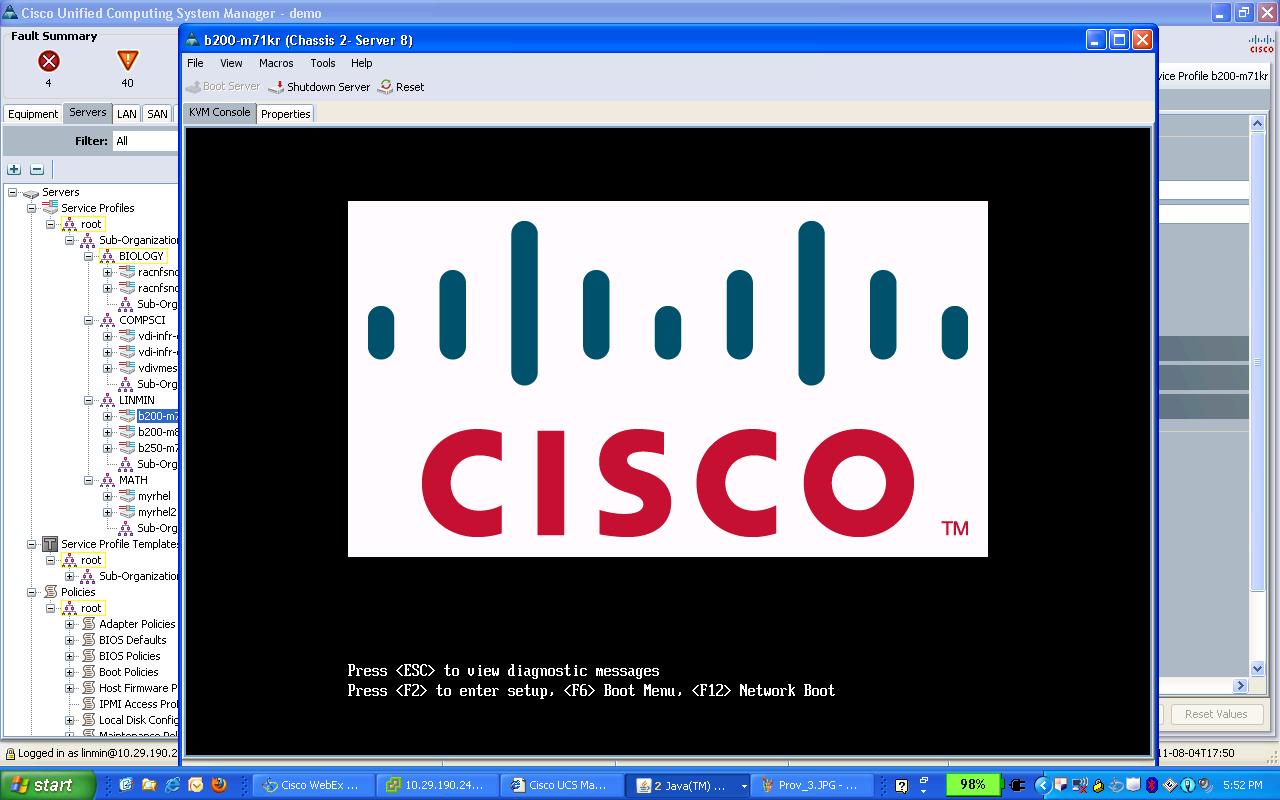
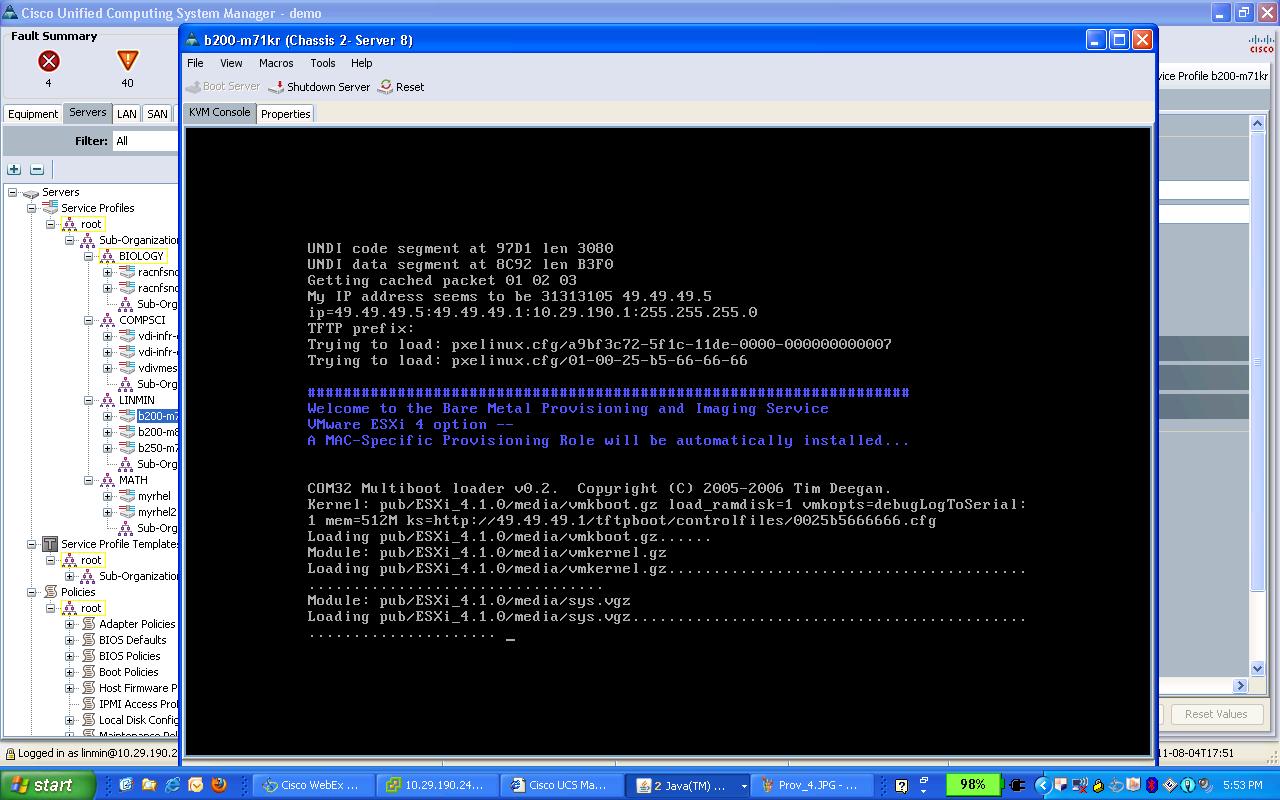
The following series of screenshots is representative of the user experience when provisioning or imaging UCS Blades. In this particular example, we are provisioning ESXi 4.1 using MAC-Specific Provisioning.
Please note that there may be significant delays between steps as configuration and hardware diagnostics are being performed in the background.
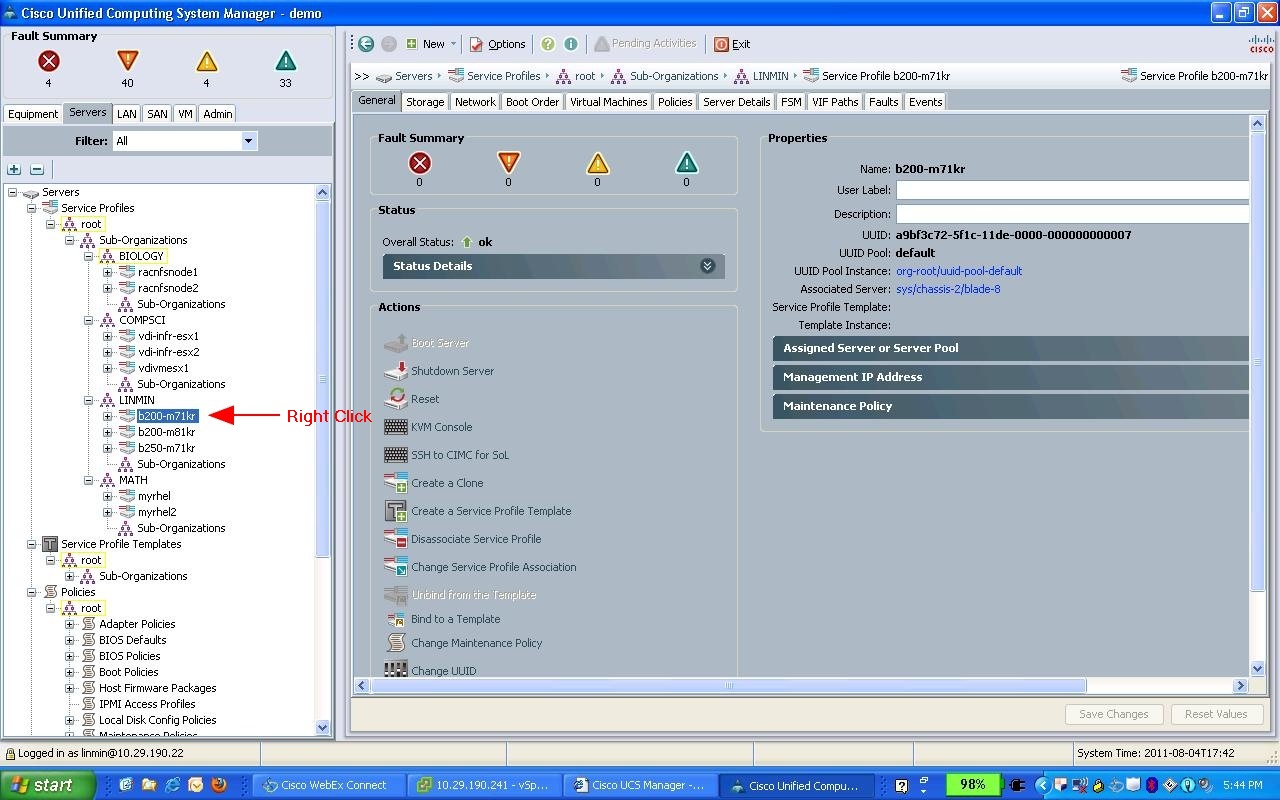
Select your UCS blade:
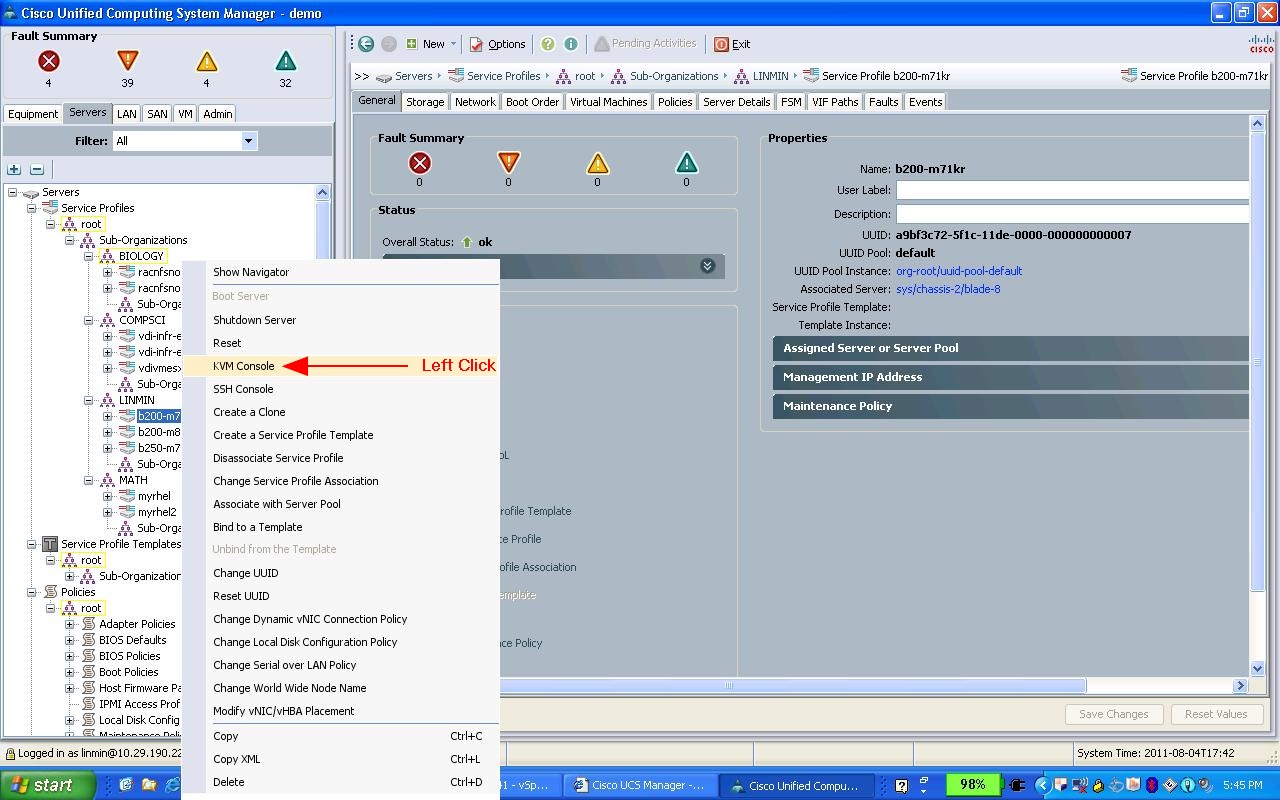
Access the KVM Console:
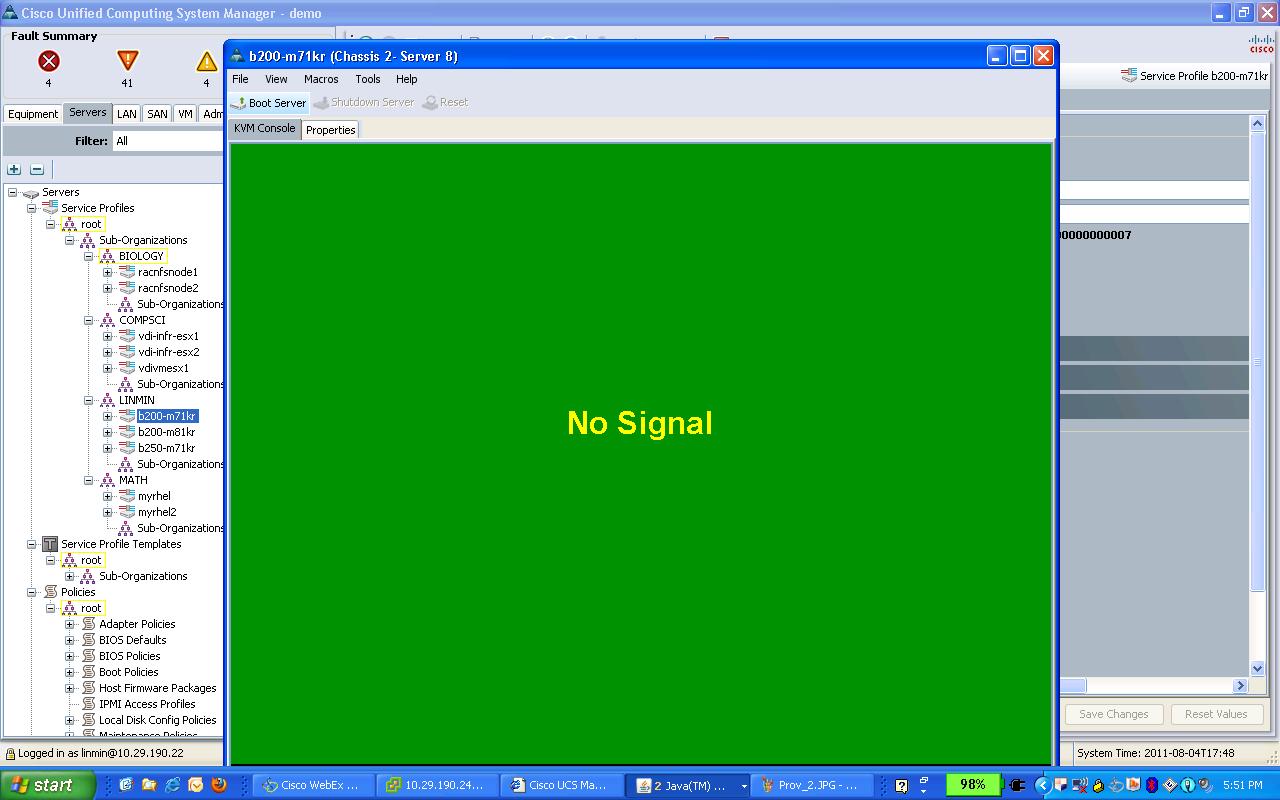
Observe the "No Signal" on the KVM console:
Observe the Cisco logo (several minutes may have gone by):
Observe ESXi being provisioned (this screen will be different depending on whether you are provisioning or imaging):
When the provisioning or imaging event is completed, you will be presented with the OS or hypervisor login screen.
|